Network
Configure network settings in each player’s show additional options section in the test editor.
Proxy & IP Whitelisting
If your development builds connect to private servers (config servers, game servers, etc.) that require IP whitelisting, add the following IP ranges:
103.231.42.40/29
103.231.79.40/29
209.58.137.40/29
217.112.145.88/29
149.6.5.8/29
Single IP Proxy
In cases where whitelisting the ranges above is not possible, you can enable the dedicated HTTP proxy under Project Admin → Settings → Features by toggling on HTTP Proxy. This routes HTTP/S traffic through a single IP:
13.56.60.143We recommend whitelisting the datacenter IP ranges above instead of using the dedicated proxy. Enabling the proxy comes with two restrictions:
- Only HTTP/S traffic is proxied. Other protocols (e.g., WebRTC) will not be routed through the single IP.
- Only US devices are available. With the proxy enabled, we can only serve devices from our US device pool.
Whitelisting the datacenter IP ranges directly has neither of these restrictions.
Geolocation
Geolocation mocking lets you simulate different regions for testing country-specific behavior like:
- Age gates
- Regional content restrictions
- Localized UI/pricing
- Geo-locked features
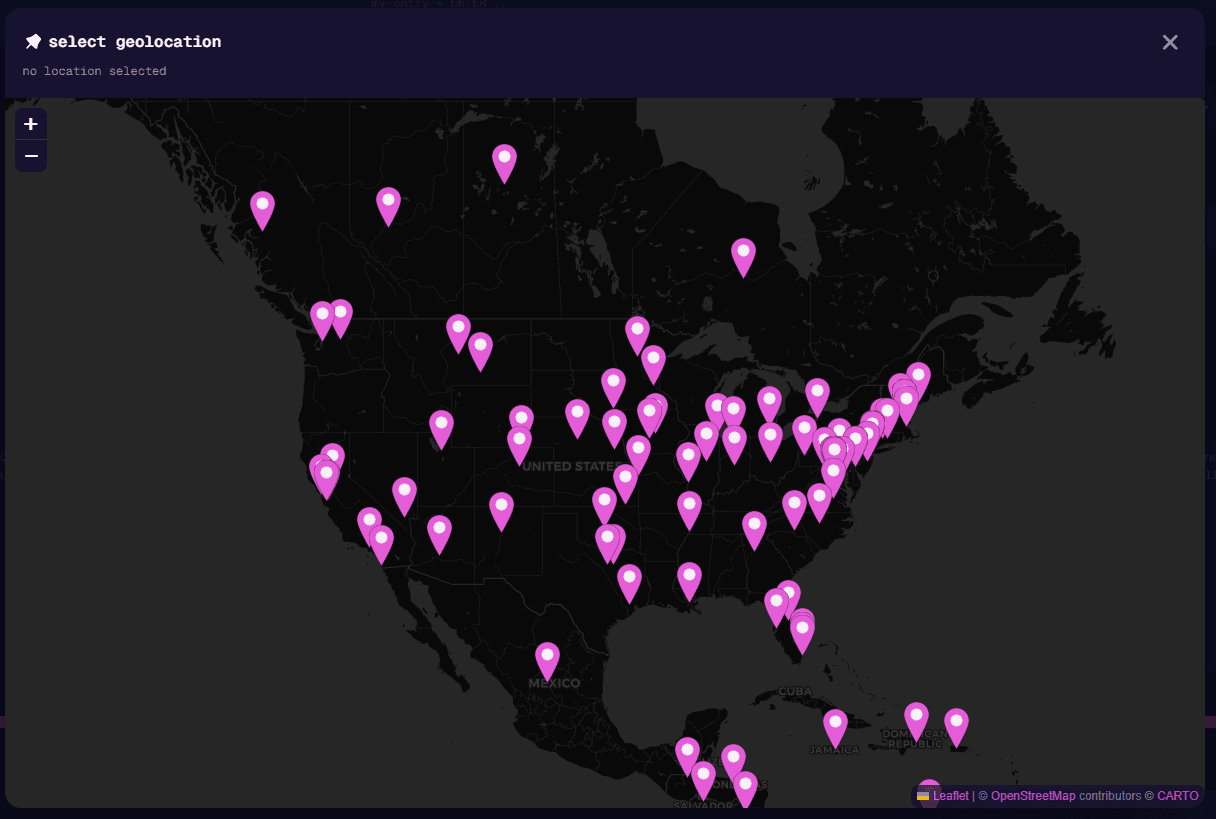
There are two separate geolocation settings:
| Setting | What it affects |
|---|---|
| IP Geolocation | Mocks the IP address location. Affects services that use IP-based location detection |
| GPS Location | Mocks the device’s GPS coordinates. Affects apps that use device location services |
These settings are independent. Depending on how your app determines location, you may need to set one or both. For example, a web-based age gate might use IP geolocation, while an in-game map feature might use GPS.
Network Logging
Enable the Network Logging toggle to capture all HTTP/HTTPS traffic during a test run.
When enabled:
- The app is re-signed to allow traffic inspection
- All network requests and responses are recorded
You can find the HAR file under the artifacts in the run details.
Re-signing the app may affect certain security features or certificate pinning. If your app uses certificate pinning, network logging may cause connection failures.