Single Sign-On (SSO)
Setting up SSO needs the Organization Admin role in your organization.
With single sign-on, people on your company’s email domain sign in to Nexus through your identity provider, for example Okta, Microsoft Entra ID, Google Workspace, or any SAML or OIDC provider. They join your organization automatically the first time they sign in, and you decide which projects they get.
SSO is an add-on. To enable it for your organization, contact us. Until it’s enabled, the SSO section in your organization settings shows “single sign-on is an organization feature”.
Setting Up SSO
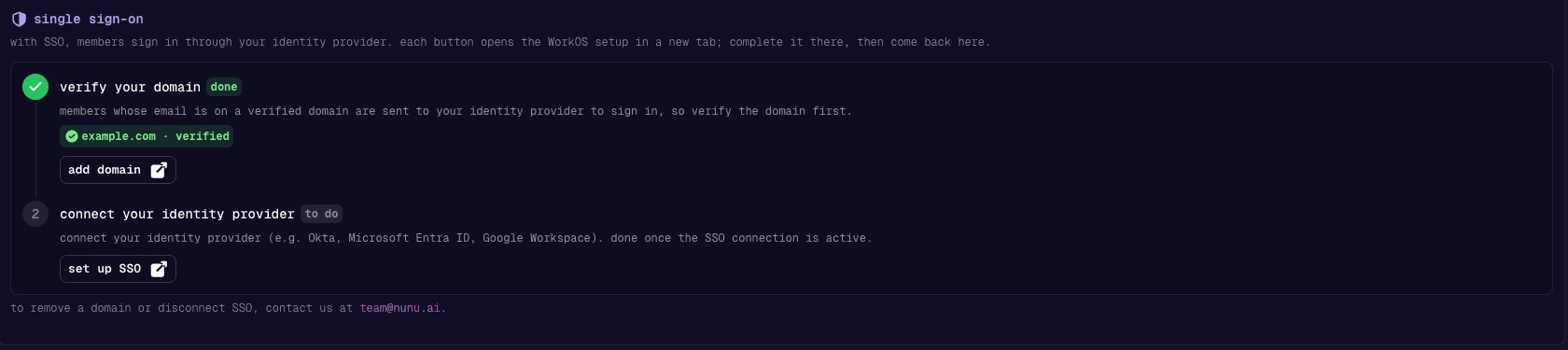
Open org admin → settings in the sidebar and scroll to single sign-on. Setup takes two steps. Each button opens a setup guide from our sign-in provider in a new tab: complete it there, then come back to Nexus. Each step shows done once it’s complete.
Verify your domain
Click verify domain and enter your company’s email domain (for example acme.com). The setup guide shows a DNS TXT record: add it at your DNS provider. Once the record is found, the domain shows as verified.
Members whose email is on a verified domain are sent to your identity provider to sign in, so verify the domain first. Use add domain to add more domains later.
Connect your identity provider
Click set up SSO and follow the guide for your identity provider. It walks you through creating the app in your identity provider and exchanging the connection details, and lets you test sign-in before you finish.
The step is done once the SSO connection is active, and your organization gets an SSO badge.
If directory sync is enabled for your organization, a third, optional step lets you connect your company directory.
The setup links are only valid for a few minutes. If a link has expired, open it again from Nexus instead of sharing it.
What Your Members Experience
- Signing in: members go to nunu.ai/nexus , enter their work email and are sent to your identity provider. After signing in there, they land in Nexus.
- Existing members: people who already had a Nexus account with an email on your domain now sign in through your identity provider as well. They keep the same account, projects and roles.
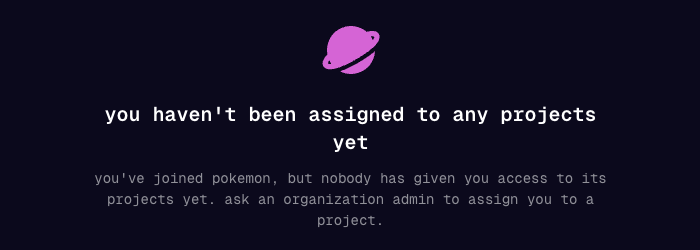
- New members: someone signing in for the first time joins your organization automatically, but without any projects or roles. Until an admin assigns them, they see this page:
Assigning New Members
When people have joined without projects or roles, organization admins see a banner on the organization’s projects page.

Click ASSIGN (or the unassigned counter on org admin → members) to open the list of unassigned members. It shows how each person joined: sso, or invite for people who accepted an invitation.

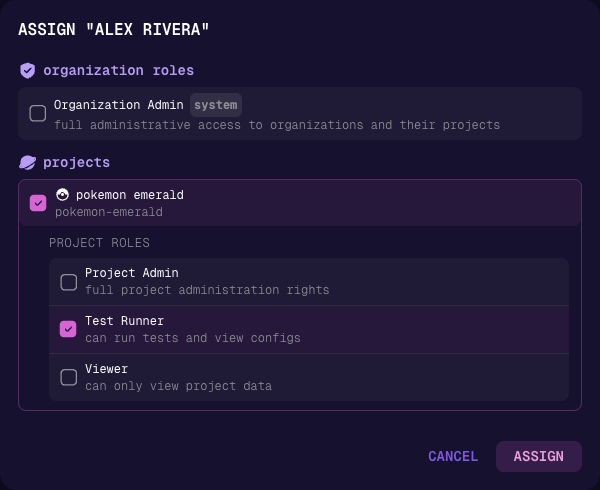
Click the button in the actions column to assign a member. Choose organization roles and projects, pick their role in each project, and click ASSIGN.
Seats
Every member of your organization takes a seat, including people who join through SSO. If all seats are taken when someone joins through SSO, they still join, but they’re marked over budget and can’t open the organization until a seat is free. They see a page saying “your organization has no free seat”, and get access the next time they sign in after a seat frees up.
On org admin → members, the seat counter turns red when you’re over your limit, and a warning shows how many members are locked out. To make room, remove members you no longer need, or contact us to add seats.
Sign-In Method Badges
The members list on org admin → members shows a badge next to each email with the method that person last signed in with, for example sso, password, google, github or apple. Hover over the badge to see when they last signed in.

Changing or Removing SSO
- Add a domain or change your identity provider: use add domain or manage SSO in the same single sign-on section.
- Remove a domain or disconnect SSO: contact us at team@nunu.ai.
- Offboarding: to remove someone’s access, remove them from your organization in Nexus. Deactivating them in your identity provider stops new sign-ins, but doesn’t remove their Nexus membership. With directory sync, deactivating them in your directory removes them automatically.