Getting Started with Unity
This guide covers the Unity SDK 2.0.0. If you are upgrading from a 1.x
release, read the Migration Guide
first — the manager prefab, PacketLogger, and scene-based setup are gone.
The SDK requires Unity 2021.3 or newer. It uses TextMesh Pro for its optional in-game UI and supports both Unity’s Input System package and the legacy Input Manager.
Installation
- Before you can access the SDK, you must be invited to the nunu-ai-hub Github organization by the nunu team. If you haven’t been invited yet, you’ll see a 404 error when trying to access the repository. Please contact the nunu team via Slack or email (team@nunu.ai) to request access.
- Once you have access, sign in on Github and download the newest Release of the nunu SDK from our Github (e.g.
nunu-sdk-unity-2.0.0.tgz).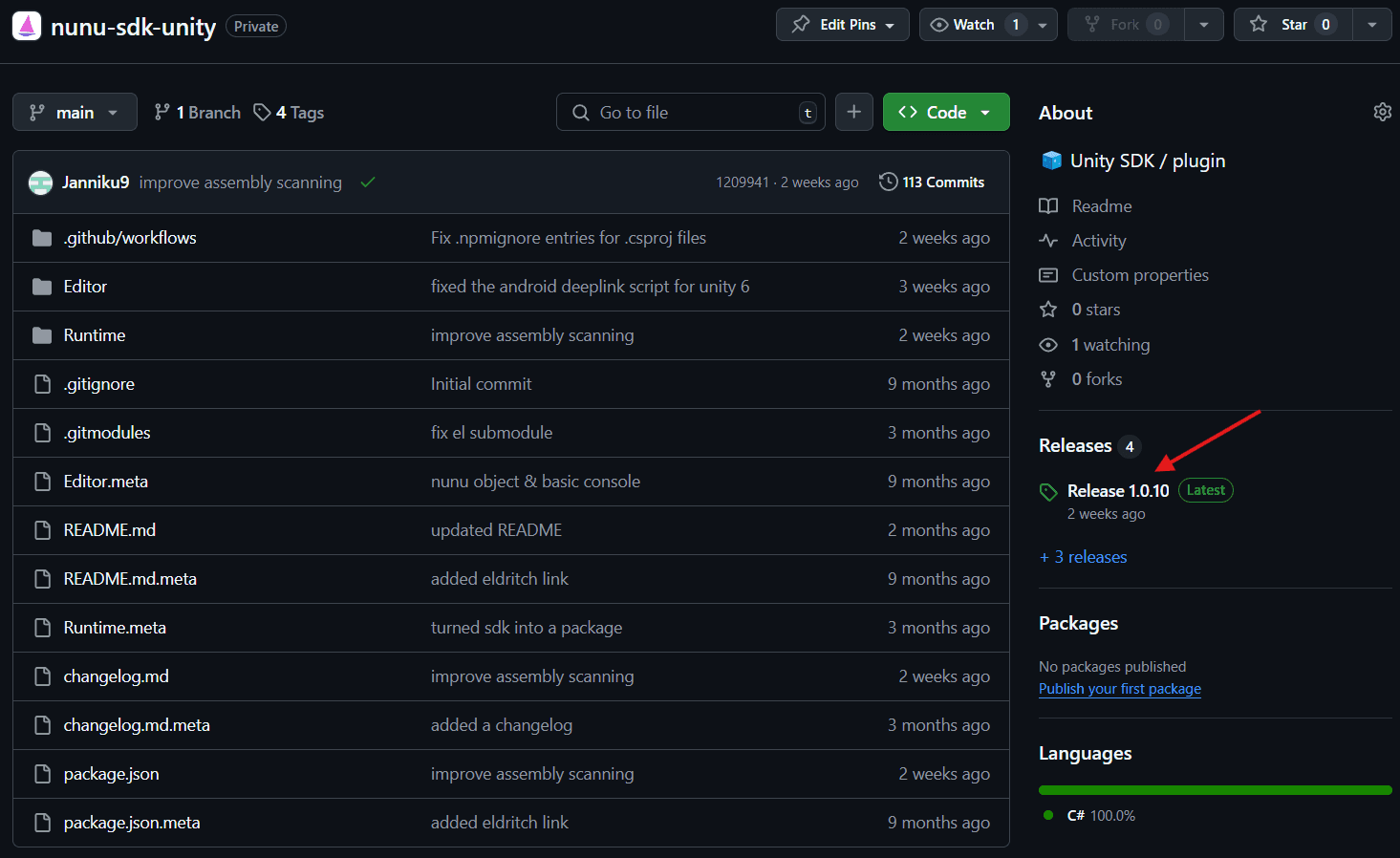
- In the Unity editor, navigate to:
Window > Package Manager - Click the ”+” icon and select “Add package from tarball…”
- Select the
nunu-sdk-unitypackage tarball and wait for Unity to import it. - Import TMP Essentials if Unity prompts you to do so.
That’s it — there is no prefab to add and no scene setup. When enabled, the SDK bootstraps itself before the first scene loads. It creates one hidden, persistent host for its lifecycle callbacks and optional UI, so you never place a component in a scene or call an initializer.
Enable the SDK
The SDK starts disabled for development convenience. To activate it, go to Tools > Nunu SDK > Active Status in the top menu. This adds or removes the USE_NUNU_SDK scripting define for the currently selected build target.

By default the SDK is excluded from builds. Check the Build Configuration guide to learn how to include the SDK in your builds. This is especially important for mobile games, where you need to enable Deep Linking.
Runtime configuration
The defaults enable the in-game console, the transient connection-status UI, the F7 hotkey, and the bottom-left mobile gesture corner. In 1.x these lived on the NunuManager prefab’s inspector — in 2.0 they are set programmatically through NunuSdk.Configure from your startup code:
#if USE_NUNU_SDK
using Nunu;
using Nunu.Utils;
using UnityEngine;

public static class NunuMenuConfig
{
    [RuntimeInitializeOnLoadMethod(RuntimeInitializeLoadType.BeforeSceneLoad)]
    private static void Configure()
    {
      NunuSdk.Configure(new NunuConfig
      {
          ConsoleHotkeys = new[]
          {
              new HotkeyCombo
              {
                  PrimaryKey = KeyCode.F7,
                  ModifierKeys = new[] { KeyCode.LeftShift }
              }
          },
          DebugMenuCorner = DebugMenuCorner.BottomLeft,
          ShowConsole = true,
          ShowConnectionInfo = true
      });
    }
}
#endif
Pick a console hotkey that won’t conflict with your game controls.
Connecting to the Debugger
The SDK connects to Nexus over EldritchLink v5 (EL5). A connection string has this form:
<scheme>://<host>:<port>/<connection-id>| Scheme | Transport | Certificate validation | Typical use |
|---|---|---|---|
els:// | Secure WebSocket | Enabled | Production |
elx:// | Secure WebSocket | Disabled | Development with a self-signed certificate |
el:// | WebSocket | Not applicable | Trusted local development |
The host, port, and connection ID are all required.
2.0 uses EldritchLink v5. Nexus still accepts both v4 and v5 connections, so you can upgrade on your own schedule — but some features are v5-only.
In-game console
- Start your game in the Unity Editor or an SDK-enabled build. You might be asked to import TMP Essentials if you haven’t already — click “Import Essentials”.
- Open the console with F7 (or your configured hotkey). On mobile, a triple-tap in the configured screen corner also opens it (default: bottom-left).
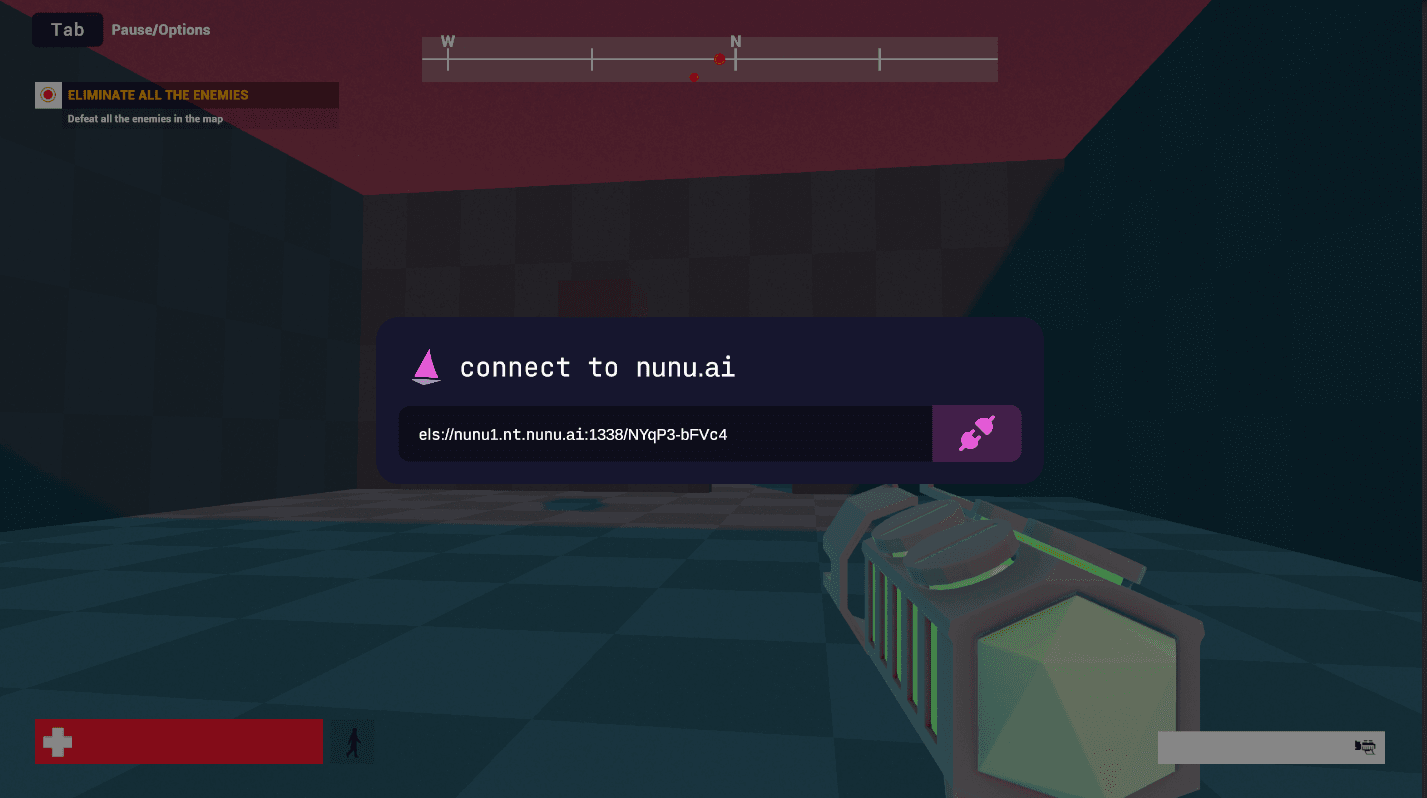
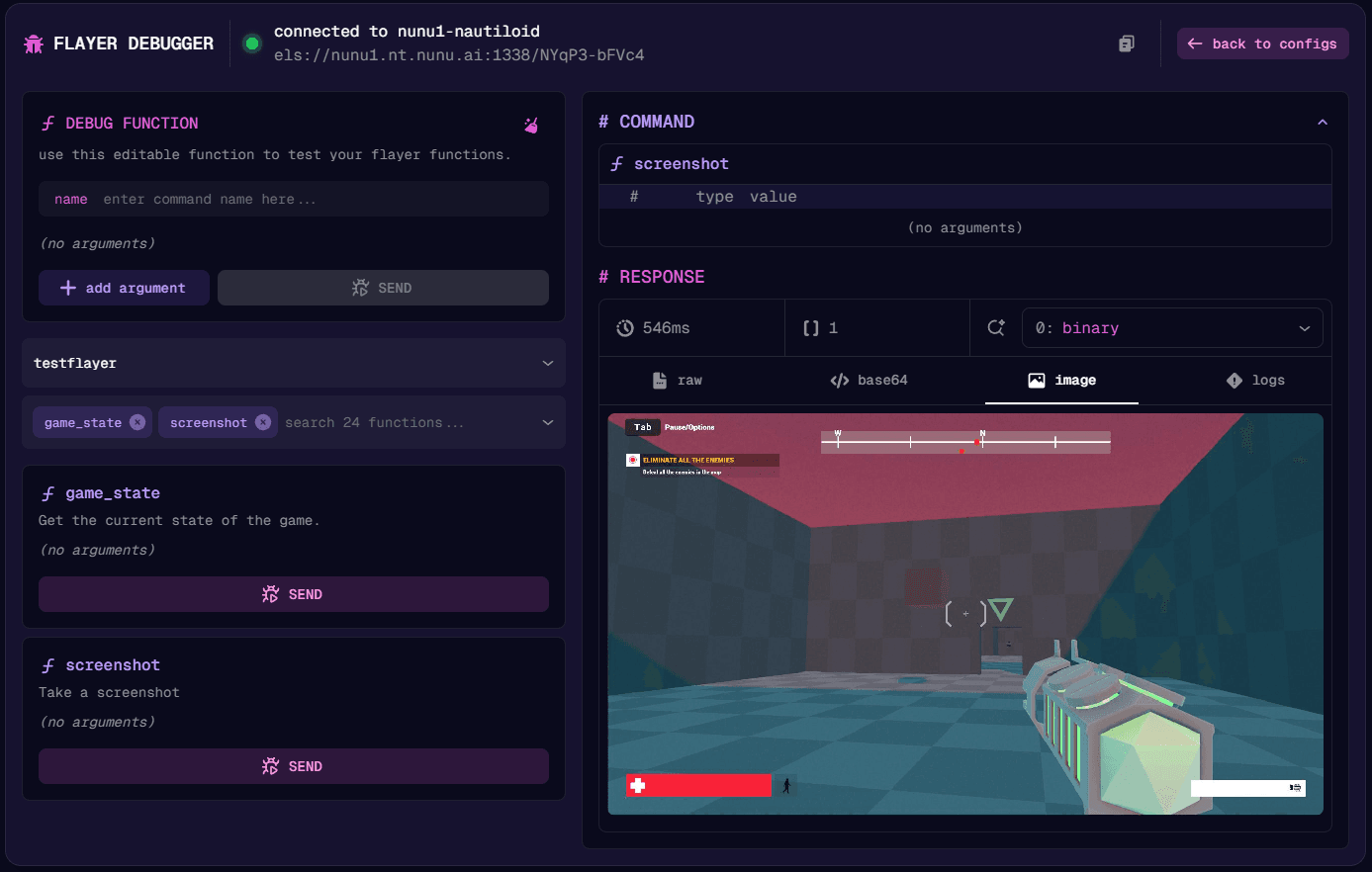
- Grab a connection string from the Flayer debugger on Nexus, paste it into the console, and press Enter to connect.
- If the connection succeeds you can run commands from the debugger in the game. Try the game state command!
Command line and deep links
Pass the connection string to a desktop build with --nunu:
MyGame.exe --nunu=el://127.0.0.1:8000/unity-player-1Android and iOS builds are automatically configured to accept el://, els://, and elx:// deep links when the SDK is enabled. If both are present at startup, the deep link takes precedence over --nunu.
Writing the first flayer function
Here’s a step-by-step guide on how to implement Flayer functions in your Unity project:
- Create a new folder in your Unity project’s Assets directory where you want to store all custom Flayer functions that bridge the SDK with your game.
- Inside the new folder, create a new C# script with a static class. This is where you’ll implement your Flayer function.
- Ensure that all code related to the SDK is wrapped in
#if USE_NUNU_SDKand#endifpreprocessor directives. This is crucial to prevent compilation errors when the SDK is disabled.
In the example below, we define a NavigationFunctions class with a HandleNavigateToObject Flayer function. The function takes two arguments: the target GameObject name and the stopping distance. It validates the required GameObjects, retrieves a path from the player’s position to the target using PathManager, and moves the character along the waypoints until within the stopping distance. Diagnostics are logged with UnityEngine.Debug — while the SDK is connected, Unity logs are automatically forwarded over EL5 to game.log, so there is no logger to pass around. When the handler can’t proceed it throws, and the exception is returned to the agent as an EL5 error.
#if USE_NUNU_SDK
using System;
using System.Collections;
using UnityEngine;
using Nunu.Flayer;

public static class NavigationFunctions
{
    [FlayerFunction("navigate_to_object", "navigates to the given object", yieldReturnType: typeof(bool))]
    public static IEnumerator HandleNavigateToObject(string objectName, float stopDistance)
    {
        GameObject targetObject = GameObject.Find(objectName);
        if (targetObject == null)
            throw new ArgumentException($"Could not find object named '{objectName}'");

        // Find main player controller component
        PlayerController playerController = Object.FindObjectOfType<PlayerController>();
        if (playerController == null)
            throw new InvalidOperationException("Could not find PlayerController component");

        // Get path manager component
        PathManager pathManager = Object.FindObjectOfType<PathManager>();
        if (pathManager == null)
            throw new InvalidOperationException("Could not find PathManager component");

        Debug.Log($"Calculating path to {objectName}");

        // Get path from current position to target
        Vector3[] path = pathManager.GetPath(playerController.transform.position, targetObject.transform.position);
        if (path == null || path.Length == 0)
            throw new InvalidOperationException("Could not find a valid path to the target");

        Debug.Log($"Following path with {path.Length} waypoints");

        // Follow the path
        int currentWaypoint = 0;
        while (currentWaypoint < path.Length)
        {
            // Move towards current waypoint
            Vector3 waypoint = path[currentWaypoint];
            float distanceToWaypoint = Vector3.Distance(playerController.transform.position, waypoint);

            // If close enough to waypoint, move to next one
            if (distanceToWaypoint < 0.5f)
            {
                currentWaypoint++;
                if (currentWaypoint < path.Length)
                {
                    Debug.Log($"Reached waypoint {currentWaypoint}/{path.Length}");
                }
                continue;
            }

            // Calculate direction and move
            Vector3 direction = (waypoint - playerController.transform.position).normalized;
            playerController.Move(direction);

            // Check distance to final target
            float distanceToTarget = Vector3.Distance(playerController.transform.position, targetObject.transform.position);
            if (distanceToTarget <= stopDistance)
            {
                Debug.Log($"Reached target {objectName}");
                yield return true;
                yield break;
            }

            yield return null;
        }

        Debug.LogWarning("Finished following path but did not reach target");
        yield return false;
    }
}
#endif
With the Flayer function implemented, the SDK automatically discovers and registers it for every new connection. The function is now accessible to the AI agent for invocation.