Devices
We offer a wide range of real, physical Android and iOS phones from different manufacturers, with different resolutions, hardware configurations, and OS versions.
Device Selection
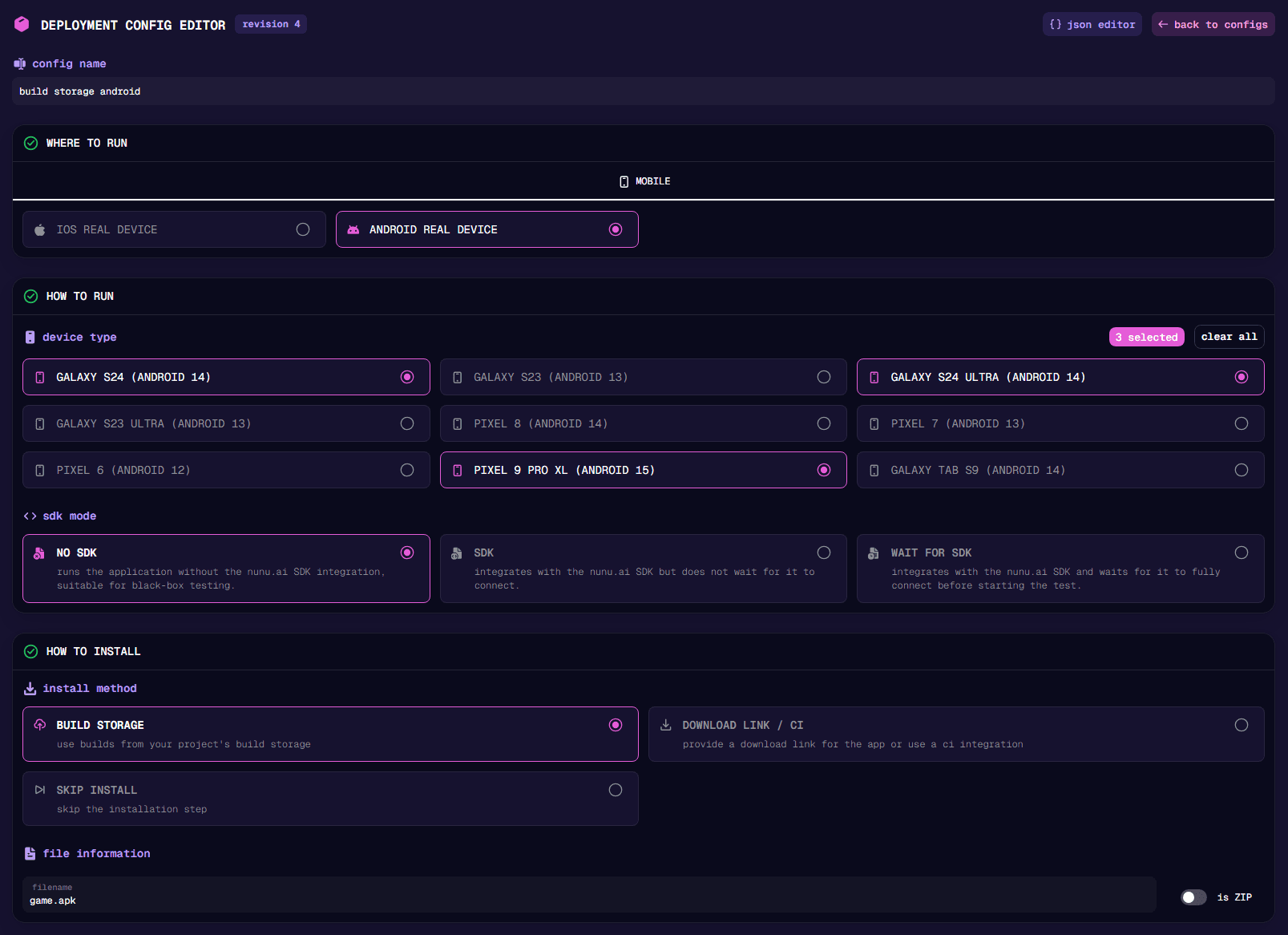
In your deployment configuration, you can choose from our list of supported devices. The deployment config editor shows you the current list of available device models.
Single Device
When you select a single specific device, your test will run on exactly that model. If no device of that model is currently available, setup time might be longer as we wait for one to free up.
Multiple Devices
Selecting multiple devices will choose one of the options at random when a test starts, based on availability. Use this to:
- Increase availability: We’ll pick whichever device is free first, reducing wait times
- Test across variations: Run your tests on different providers (Google, Samsung, etc.), screen resolutions, hardware specs, or OS versions over time
Advanced: Run multiple devices at the same time
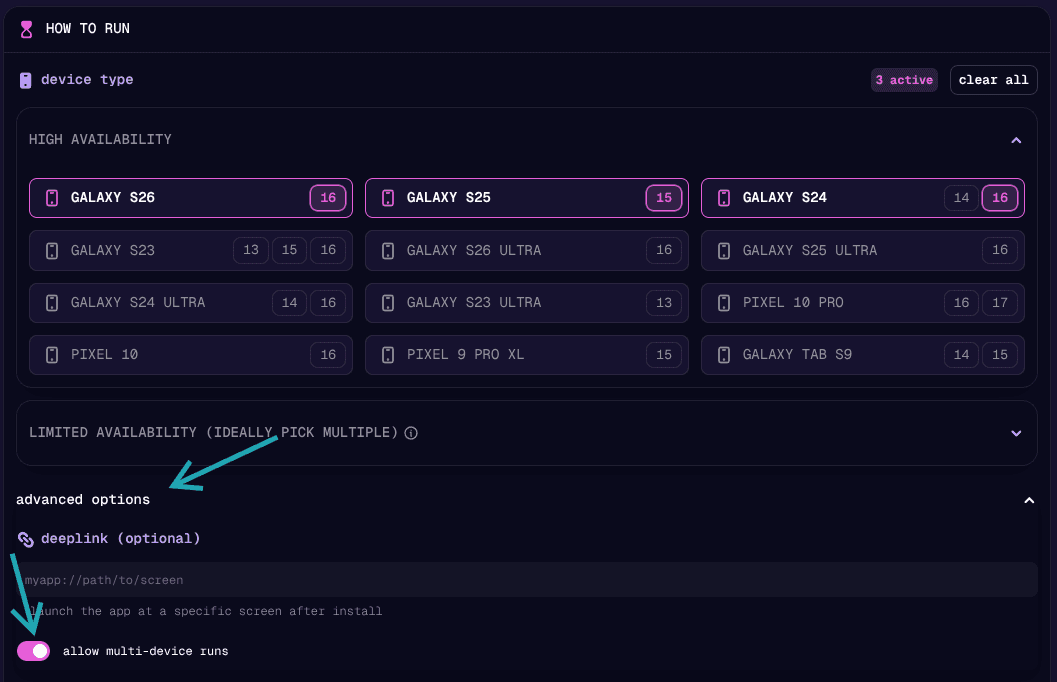
You can multiple test runs, one for each selected device, at the same time. Use this in case you require strict coverage testing across a set of devices.
Note that this may result in device-availability issues.
To enable, open the advanced options section, and toggle allow multi-device runs.
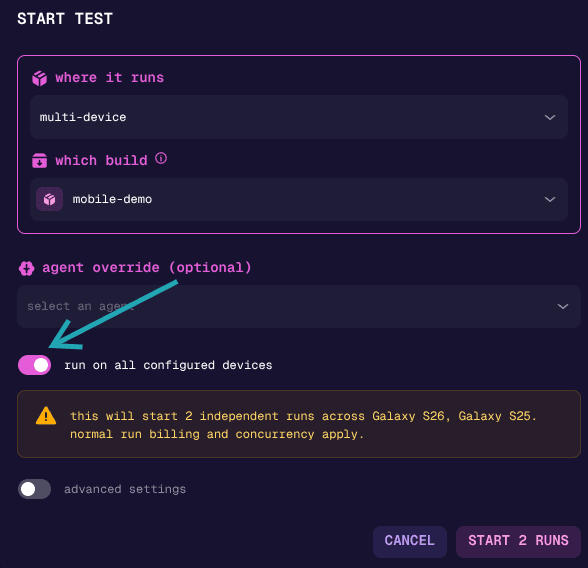
Then, in the start test and start test plan dialogs, as well as trigger config page you can choose to run on all configured devices instead of choosing one of them.
Launch Modes
How your app launches depends on your deployment configuration settings:
| Mode | Behavior |
|---|---|
| With Build (No SDK) | Installs your build and launches it normally |
| With Build (SDK/Wait SDK) | Installs your build and launches via els:// deeplink to establish a connection to the NunuSDK |
| Skip Install | Launches on the device home screen without installing anything. Useful for browser-based tasks |
Device Reset
All standard devices are wiped after every test run. This means:
- All apps are uninstalled
- All local data is deleted
- Every test starts with a completely fresh device
This ensures consistent, reproducible test results.
Server-Side Data Warning: If your game stores user data on a server using hardware identifiers (device IDs, advertising IDs, etc.), that data will persist across test runs. We don’t have an infinite pool of unique devices, so you may encounter the same device again in future tests.
To handle server-side data, integrate the NunuSDK and expose an app-reset or user-nuke command that wipes user data before each test starts.
Google Accounts and Standard Devices
Standard devices cannot be used with Google accounts due to two issues:
- 2FA Challenges: Google detects the device as “new” on every test run and triggers verification challenges
- Account Bans: Using an account across many different devices triggers Google’s suspicious activity detection, eventually leading to account suspension
This means you cannot test Google Play purchases, Google Sign-In, or other Google account features on standard devices.
Private Devices
For testing that requires persistent accounts (payment testing, Google Play purchases, etc.), we offer private devices.
A private device is:
- Dedicated to you: The same physical phone, only available to your organization
- Never wiped: Keeps apps installed and accounts logged in between tests
- Persistent identity: Appears as a normal, consistent device to Google and other services
Because the device maintains a stable identity, you can keep Google accounts logged in without triggering security measures.
A deployment config can select multiple private devices. Multiplayer tests, per-player configs, and cross-platform test plans all work with private devices, as long as the configs used by a test provide a distinct device for every player.
Private devices are priced separately due to their dedicated nature. If you’re interested, please reach out to us.
Advanced Options
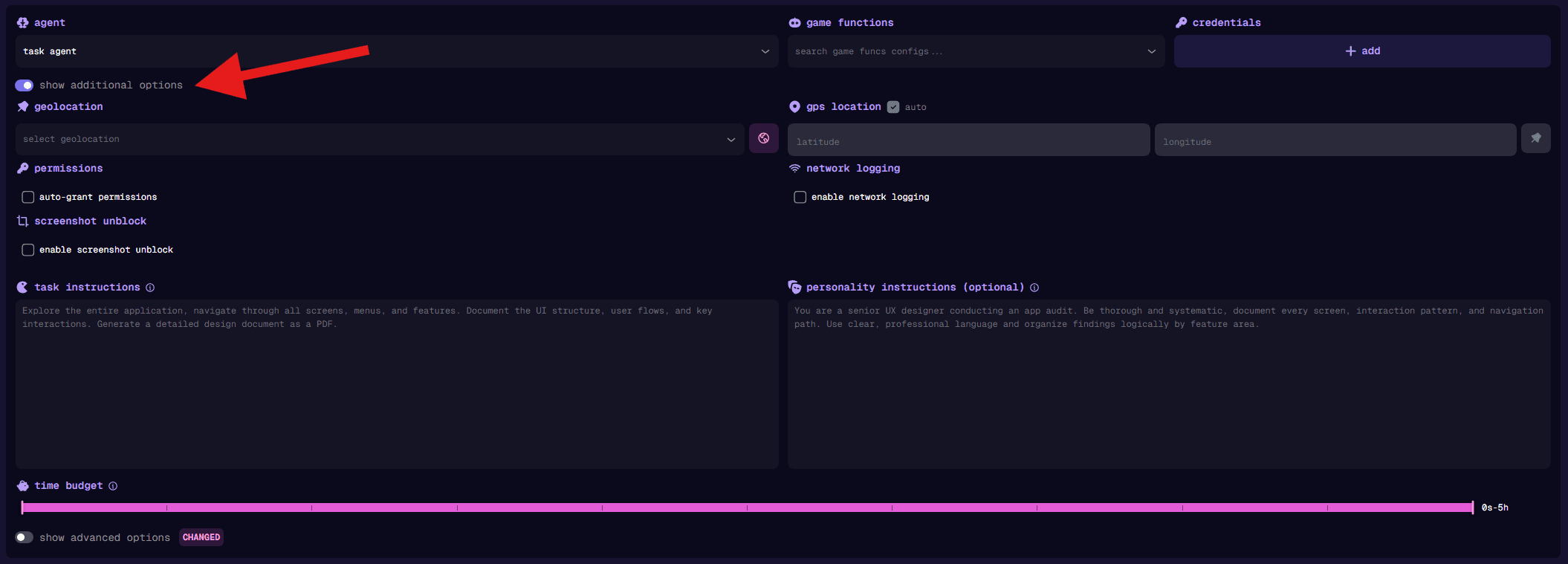
Configure these settings in each player’s show additional options section in the test editor. For explanations regarding Geolocation, GPS location and network logging, see Network.
Auto-Grant Permissions
When enabled, permission popups (camera, microphone, location, etc.) are automatically accepted. This speeds up tests by skipping permission dialogs.
Disable this if you need to explicitly test permission request flows in your app.
Screenshot Unblock (Android)
Some apps block screenshots for security reasons (banking apps, payment screens, etc.). When these screens appear, our agent sees a black screen and cannot interact with the UI.
Enable Screenshot Unblock to re-sign the app and bypass app-level screenshot blocking.
This only bypasses app-level blocking. OS-level screenshot restrictions cannot be bypassed.