Self-Hosted Runners / Minion
Minion connects your own Windows machine or connected Android devices to nunu.ai. Install the app on the host pc, connect it to your organization or project, and select it for your test runs.
This feature is not enabled by default, contact us if you’re interested in using it.
Set up Minion
Download and install
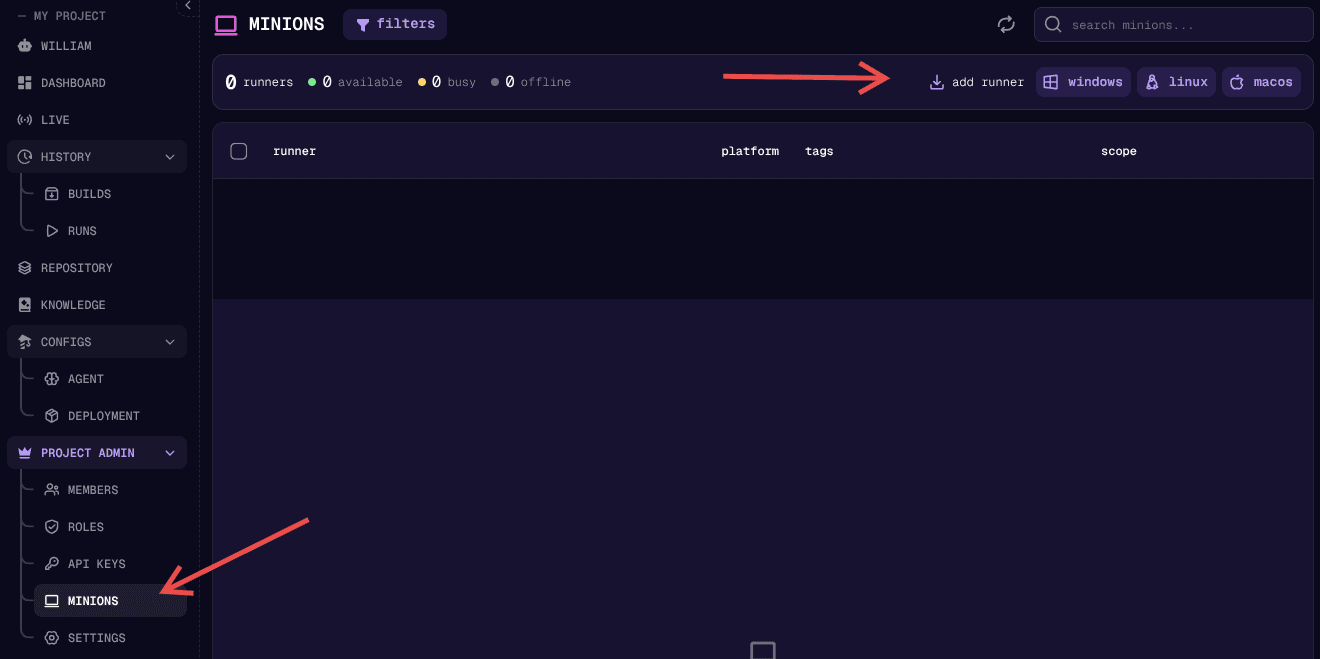
Placeholder: Describe where to open Minions on the website, choose a host platform, and download the installer.
Connect your account
Open Minion and click Start. Choose your organization and all projects or one project in the browser, then authorize the connection. After authorizing the connection in your browser, the minion starts running and is ready to receive runs.
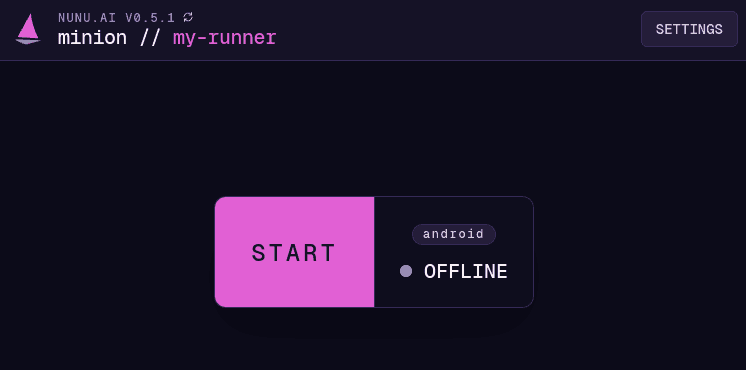
For Android phones, connect the device to the host via USB, enable USB debugging on the phone, and authorize the connection on the device. Only then start the minion.
Run a test
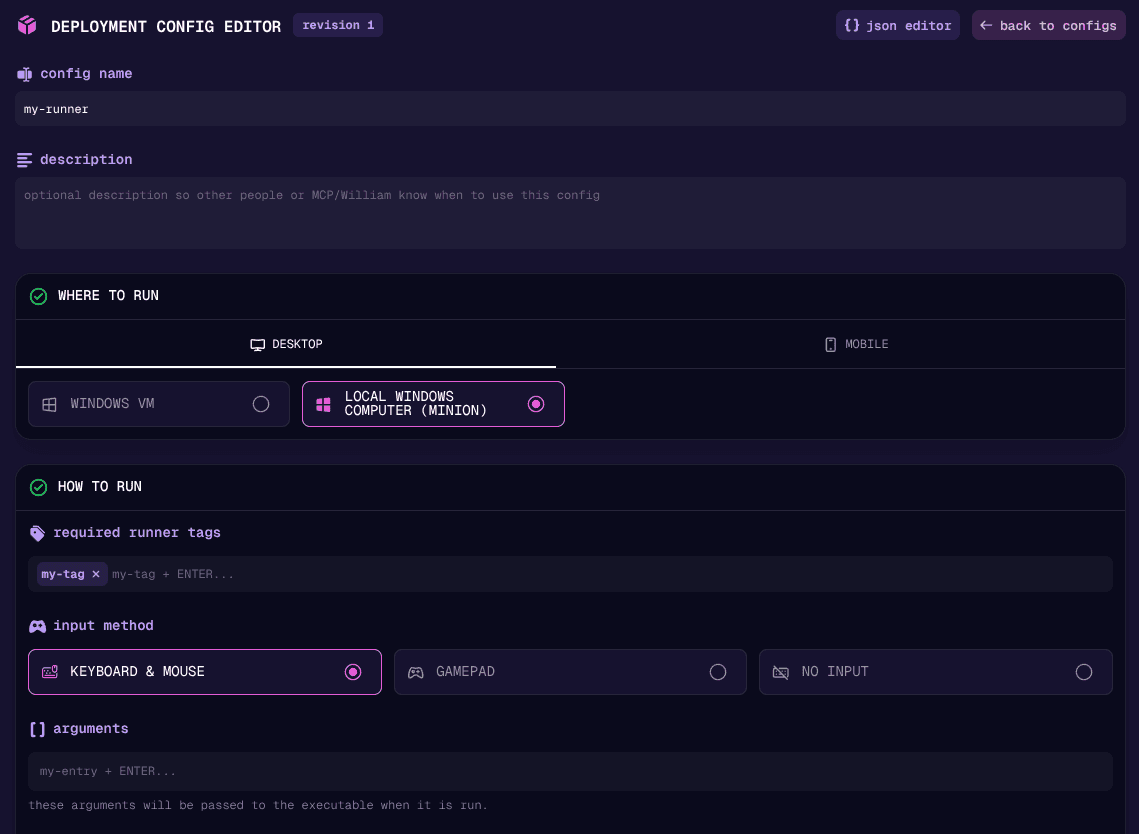
To use your new self-hosted runner, create a deployment configuration and select ‘Local Windows Computer’ / ‘Local Android Device’ as the platform. You may enter a set of required tags to filter eligible runners (see tags).
Configuration
You can edit a Minion’s display name, assigned tags, platform and more through it’s settings panel.
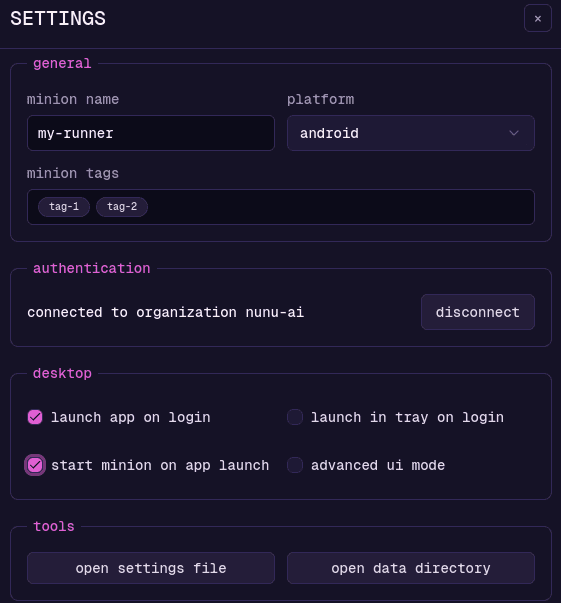
name: how this minion is displayed in nexusplatform: whether this minion offers controlling a windows computer or an android phonetags: the set of tags this minion has, for selecting groups of runnersauthentication: manage oauth or api-key authentication statelaunch app on login: wether to start the program when the user logs in to the pclaunch in tray on login: wether to launch the minion hidden as a tray application on loginstart minion on app launch: wether to immediately start listening to incoming runs when the app starts
Tags
Tags are used to define runner groups / capabilities. For example, you could give each minion running on a PC with
GameXY installed the game-xy tag, or each minion with a Pixel phone connected the pixel tag.
In the deployment config editor, you can specify a set of tag a runner has to have to be considered for a run.
Advanced: Unattended deployments
Use an organization or project API key with the project:manage-minions permission. Organization keys cover the organization’s projects; project keys cover one project. See API key setup and permissions .
Download through the API
Request the latest stable installer with your API key in the X-Api-Key header:
curl -sSL https://nunu.ai/api/v1/minions/download?platform=windows-x86_64 \
  -H X-Api-Key: YOUR_API_KEY
Other download targets are linux-x86_64 and darwin-aarch64. See Download Minion in the API docs .
Install and configure
On Windows, install silently:
Start-Process .\minion-installer.exe -ArgumentList '/S' -WaitRun the unattended setup command as the desktop user who will run Minion, with environment variable NUNU_API_KEY supplied.
& "$env:LOCALAPPDATA\nunu.ai-minion\minion-app.exe" setup `
  --name=my-runner `
  --tags=my-tag,tag-2 `
  --platform=windows `
  --autostart=true `
  --launch-in-tray-on-boot=true `
  --run-minion-on-launch=true
Setup saves the configuration and stores the API key in the OS keyring, then launches the app. If NUNU_API_KEY is unset, it prompts for a key on stdin. --run-minion-on-launch=false launches the app without starting Minion.
| Option | Purpose | Default on a new installation |
|---|---|---|
--name | Runner name | Hostname |
--tags | Comma-separated runner tags; an empty value clears them | None |
--platform | windows or android | windows on Windows hosts; android on other hosts |
--data-dir | Directory for Minion data | OS application data directory, under ai.nunu.minion |
--autostart | Launch the app at login | true |
--launch-in-tray-on-boot | Hide the window when launched at login | false |
--run-minion-on-launch | Start Minion when the app launches | true |
Omitted options preserve existing settings. Run minion-app.exe --help to list commands or minion-app.exe setup --help to see options and defaults for the current host.