Sign-in & Account
You sign in to Nexus on the nunu.ai sign-in page. From there you can use your email and password, or continue with Google, GitHub or Apple.
New sign-in page (September 30, 2026)
Everyone was signed out once when the new sign-in page went live. Your email, password and authenticator app still work, so just sign in again. MCP clients need to be re-authorized once.
Signing In
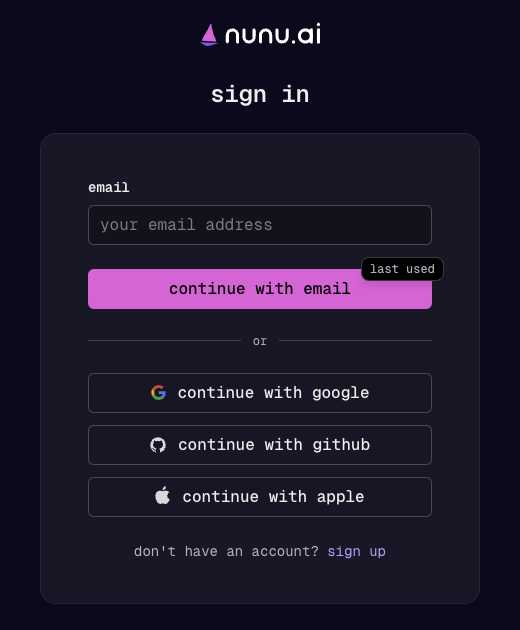
- Go to nunu.ai/nexus . If you’re not signed in, you’re sent to the sign-in page.
- Enter your email and click continue with email, or pick one of the social sign-in buttons.
- Enter your password and click sign in.
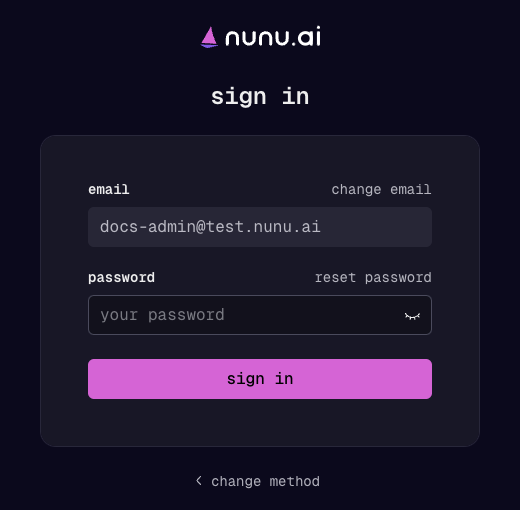
If your organization uses single sign-on, entering your work email sends you to your company’s identity provider (for example Okta, Microsoft Entra ID or Google Workspace) instead of asking for a password.
Two-Step Verification
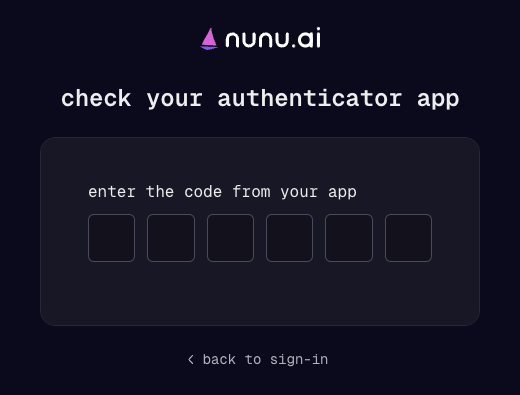
If you’ve set up an authenticator app, the sign-in page asks for the 6-digit code from your app after your password.
Resetting Your Password
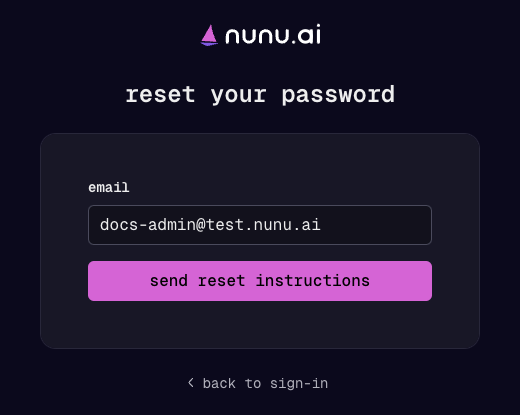
On the password step, click reset password, confirm your email and click send reset instructions. You’ll get an email with a link to choose a new password.
Creating an Account
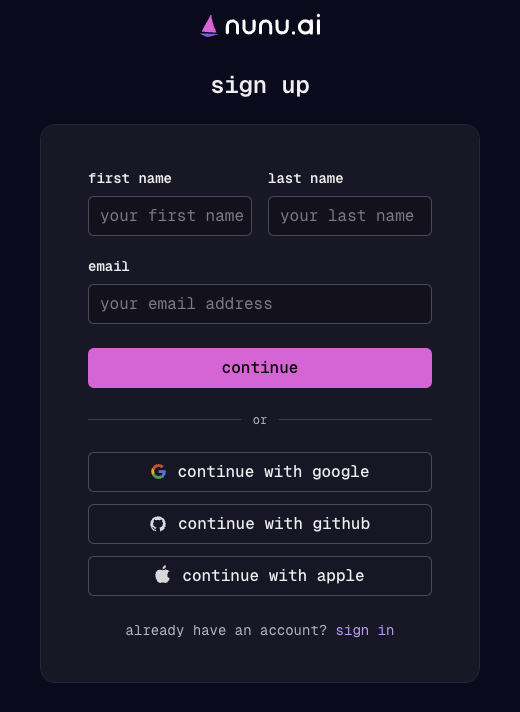
- On the sign-in page, click sign up.
- Enter your first name, last name and email and click continue, or sign up with Google, GitHub or Apple.
- If you signed up with your email, confirm it with the code we send you.
- Nexus then walks you through setting up your workspace.
If you were invited to a project, open the invite link and sign in or sign up with the email address the invite was sent to.
Account Settings
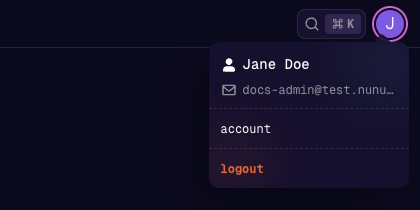
Click your profile icon in the top right and choose account.
The account dialog has four tabs.
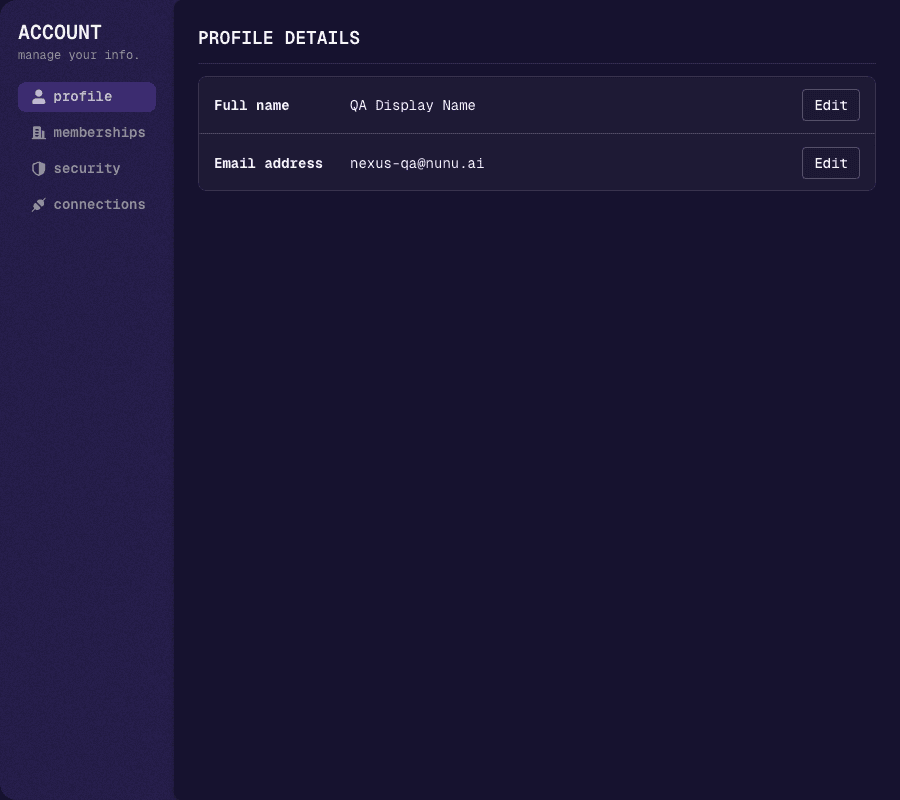
Profile
Change your full name or email address with the Edit buttons.
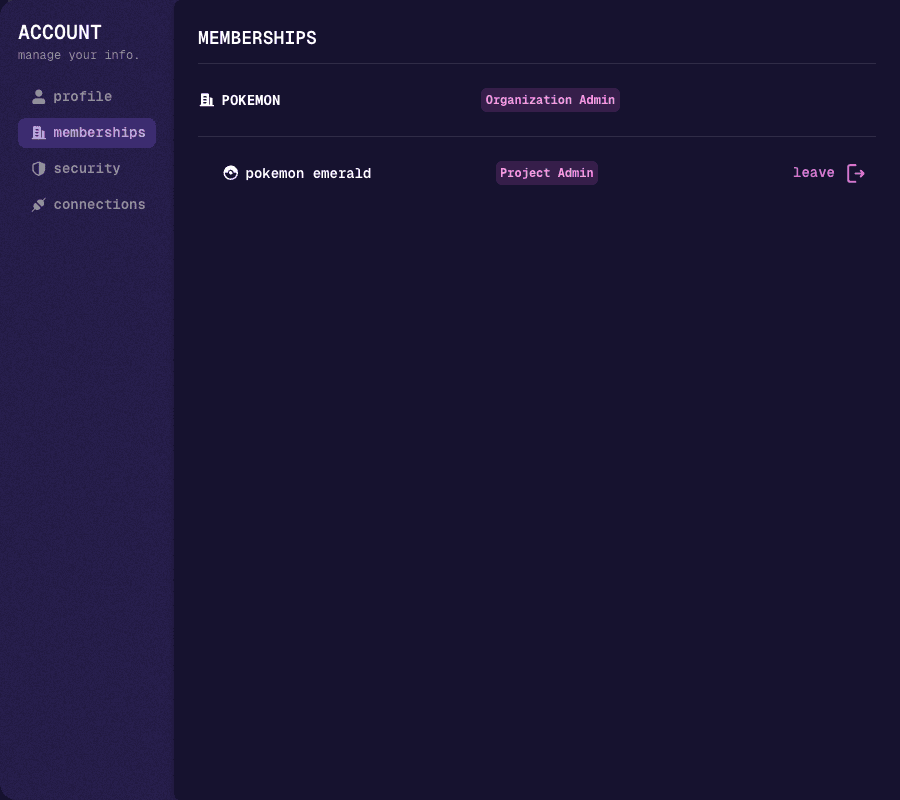
Memberships
Shows the organizations and projects you belong to and your roles in each. You can leave a project from here.
Security
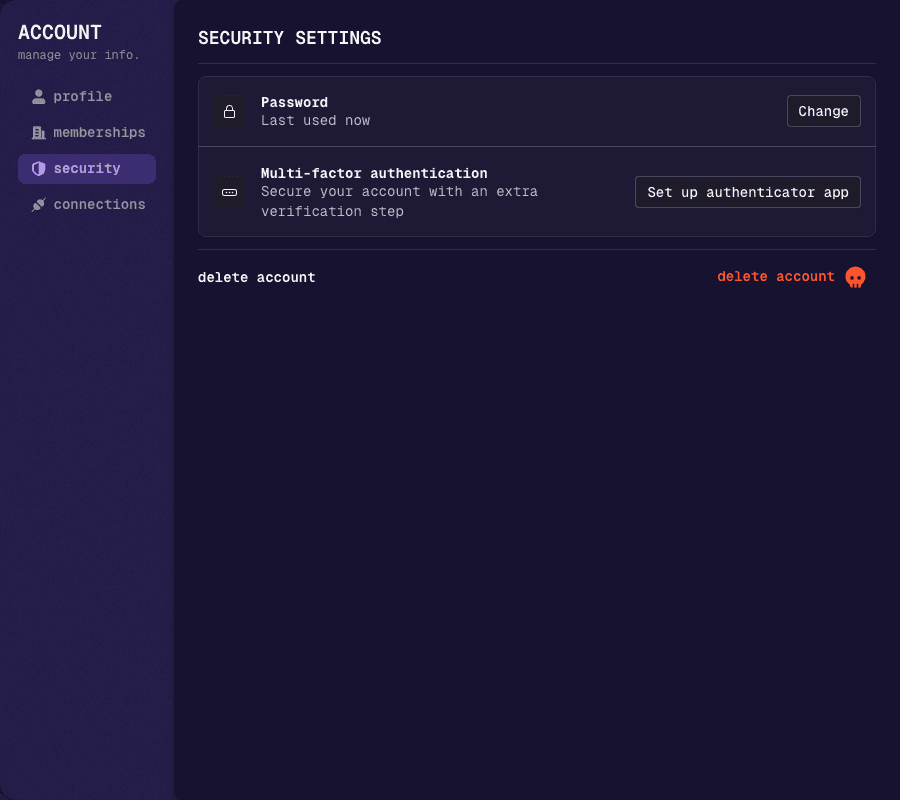
- Password — click Change to set a new password.
- Multi-factor authentication — click Set up authenticator app to add two-step verification. You’ll first confirm it’s you with a code sent to your email, then add nunu to an authenticator app such as 1Password, Google Authenticator or Authy.
- delete account — permanently deletes your account.
If you sign in through your company’s identity provider, your password and two-step verification are managed there, not in Nexus.
Connections
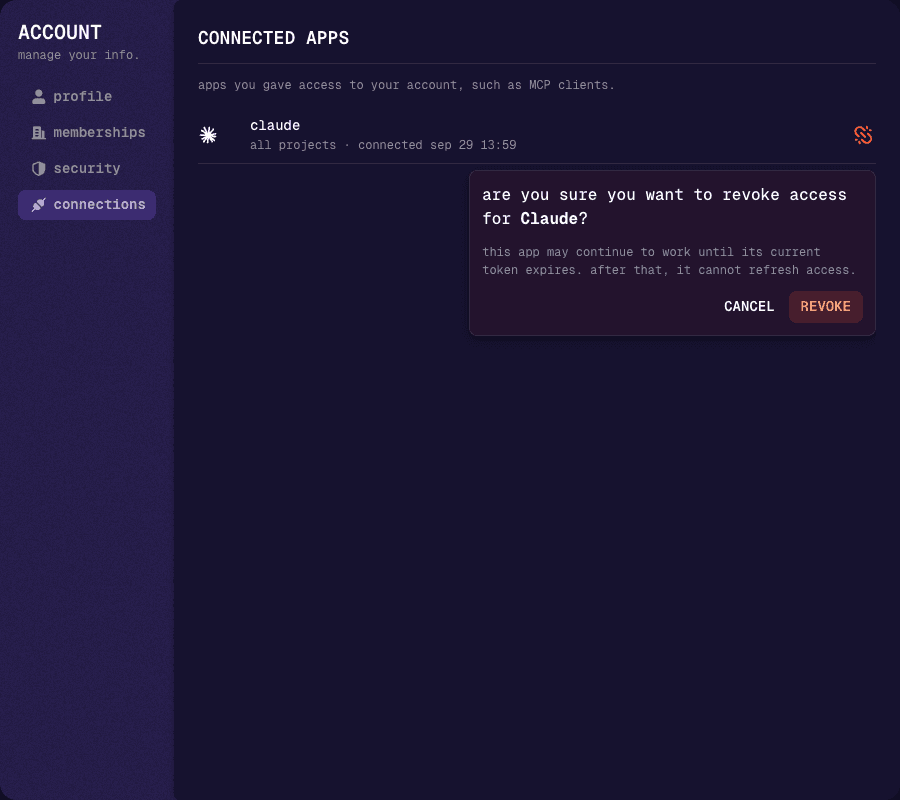
Lists the apps you’ve given access to your account, such as MCP clients, with what they can reach (all projects, or a single project) and when you connected them.
To remove an app’s access, click the unlink icon next to it and confirm with REVOKE. The app may keep working until its current access token expires, but it can’t renew access after that. To use it again, connect it again.