Credentials
Credentials is not enabled by default
Contact your project admin to enable this feature, or learn how to enable it yourself if you have admin access.
To access the Configs tab, you’ll need the project-view-configs permission,
which is available to users with the Config Manager role or other roles that
include this permission.
Overview
Credentials allow you to securely provide the AI Agent with account data, API keys, authentication tokens, and other sensitive information without exposing them on screen or transmitting them in plain text. The AI Agent can use these credentials to log into accounts, authenticate with services, or access protected features during testing.
This section shows all your credential kinds and their entries. You can create new credential types or manage existing ones.
Credential Kinds
A credential kind defines a type of credential (like “Google Account”, “Game Account”, or “API Key”) along with its structure. Each kind has:
- Name: A unique identifier for this credential type (e.g.,
google-account,steam-login,api-key)- Must be unique per project
- Used by the AI Agent in plain text instructions (e.g., “use google-account to log in”)
- Description: Short description explaining what this credential is for and how it should be used
- Provides context to the AI Agent about when and how to use this credential type
- Exclusive Use: Controls whether credential entries can be shared between concurrent tests
- When enabled, each entry can only be used by one test at a time
- Other tests wait until the entry is released before claiming it
- Schema: Defines the fields each credential entry must have
- Field types: text, password, email, number, etc.
- Example for a Google Account: username (email), password (password)
Credential Entries
Once you’ve defined a credential kind, you can create multiple credential entries of that type. Each entry contains the actual credential data following the schema you defined.
Example use cases:
- Multiple accounts: Create several “game-account” entries to test with different player profiles
- Load distribution: The AI Agent can use different entries of the same credential kind across parallel test runs
- Exclusive access: When running parallel tests with accounts that can’t handle concurrent logins, exclusive mode ensures each entry is only used by one test at a time
Creating a Credential Kind

- Navigate to Configs → Credentials
- Click Create New
- The credential kind editor opens, combining all setup in one place:
- Name: Enter a unique, descriptive name (e.g.,
google-account,test-user-account) - Description: Explain what this credential is for and provide context for the AI Agent
- Exclusive Use: Toggle on if these credentials should not be shared between tests running at the same time (see Exclusive Credentials below)
- Schema: Define the fields needed:
- Add fields like
username,password,email,api_token, etc. - Select appropriate field types (text, password, email, etc.)
- Click + add field to add more schema fields
- Add fields like
- Entries: Add at least one credential entry (required)
- Fill in the values for each field defined in the schema
- Click + add credential to add more entries
- Name: Enter a unique, descriptive name (e.g.,
- Click Create to save
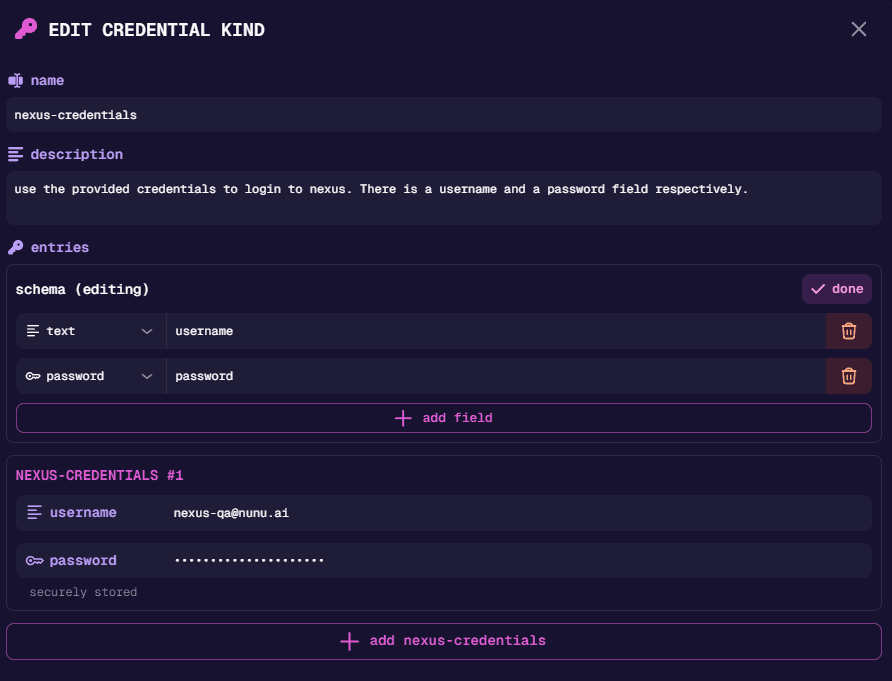
When creating a credential kind, you must provide at least one credential entry. The editor combines credential kind setup, schema definition, and entry creation in a single flow.
Adding Credentials
After creating a credential kind, you can add more credential entries by editing the credential kind:
- Select the credential kind from the list
- Click the edit icon to open the credential kind editor
- Scroll to the Entries section
- Click + add credential to add a new entry
- Fill in the values for each field defined in the schema
- Click Done to save
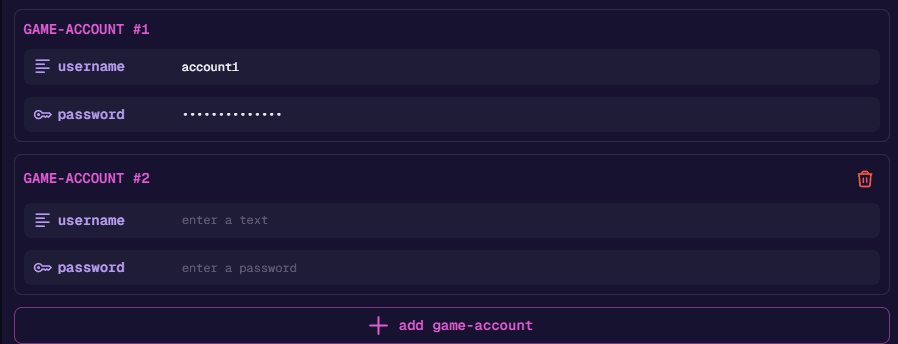
You can add multiple entries for the same credential kind to support different accounts or configurations. The same editor is used for both creating and editing credential kinds.
Exclusive Credentials
When Exclusive Use is enabled, each credential entry can only be used by one test at a time. When a test starts, it claims an available entry. Other tests wait until an entry is released. This prevents conflicts when accounts cannot handle concurrent usage.
Example: With 3 entries and 5 parallel tests, 3 tests run immediately while 2 wait. As tests complete and release their entries, waiting tests claim them and start.
Enable Exclusive Use when:
- The service only allows one active login at a time
- Tests share progress or state (e.g., game saves, shopping carts)
- The account has per-user rate limits
Leave Exclusive Use disabled if the service supports concurrent logins and tests don’t share state — this maximizes parallelism.
Using Credentials in Tests
Before you can reference a credential in your test instructions, you must first configure which credentials are available. You can add credentials at two levels:
Option 1: Agent Config Level
Add credentials to your Agent Config to make them available across tests that use that config:
- Navigate to Configs → Agent
- Open the agent config’s Credentials tab
- Select the credential kinds needed and set the count for each kind
- Click Update
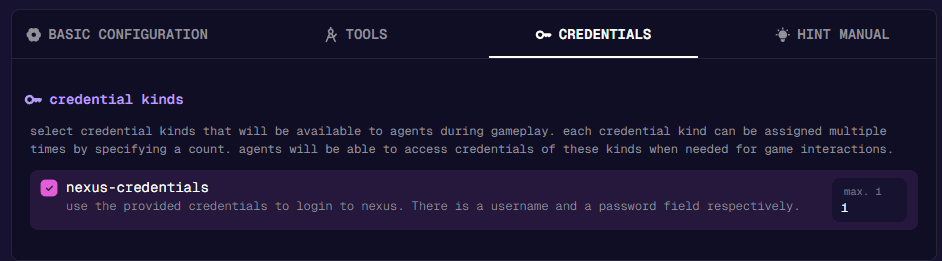
Credentials configured here are available to all tests using this agent config.
Option 2: Test Level (Test-Specific)
Add credentials to individual tests for test-specific authentication:
- Open your test in the test editor
- Click Add Credential
- Select the credential kinds needed
- Click Save
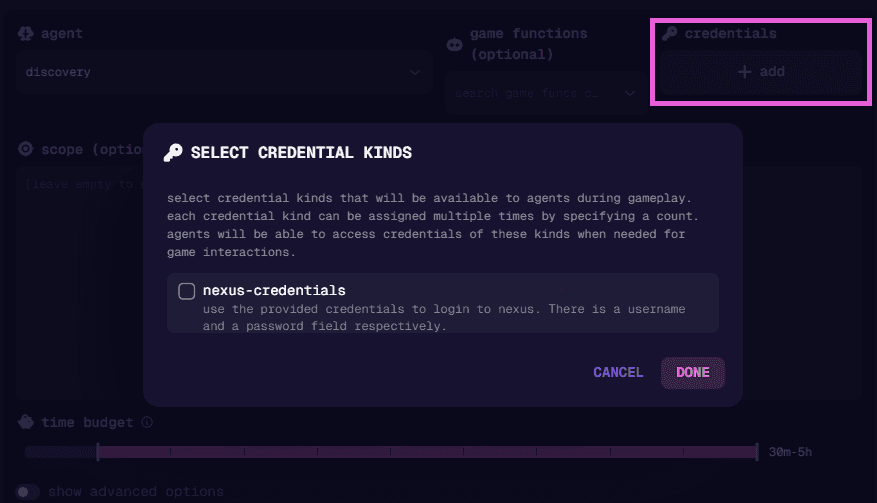
Credentials configured here are only available to this specific test.
Referencing Credentials in Instructions
Once configured, reference credentials by their kind name in your test instructions. The AI Agent will automatically access the appropriate credential data securely.
Example:
1. Navigate to the login screen
2. Use "google-account" to log in
3. Verify successful authentication
The AI Agent will:
- Recognize the credential kind
google-account - Access a credential entry of that type (from the configured credentials)
- Securely fill in the fields without displaying sensitive data on screen
Security Features
- No plain text transmission: Credential data is never passed in plain text to the AI Agent’s visual context
- Secure storage: All credential data is encrypted at rest
- Access control: Only users with appropriate permissions can view or manage credentials
One-Time Password (OTP) Fields
The one-time password field type allows the AI Agent to handle authenticator-based 2FA. When the agent needs to enter a verification code, it generates the current valid code automatically.
OTP fields only work with authenticator app-based 2FA (TOTP/HOTP). They do not work with SMS or email verification codes.
You can enter OTP credentials in two formats:
- Raw secret: The Base32 secret key (e.g.,
JBSWY3DPEHPK3PXP) — must be at least 8 characters - OTPAuth URL: The full URI format (e.g.,
otpauth://totp/Service:user@example.com?secret=JBSWY3DPEHPK3PXP)
You can find these values in your service’s 2FA setup page, often shown as a “Can’t scan the QR code?” option.
Steam Guard Codes
The Steam Guard field type allows the AI Agent to handle Steam Guard codes for two-factor authentication.
To configure, either use a URI like steam://<base32 secret> (if you have it available), or click the
use maFile button to upload a Steam Guard .maFile (this will extract the secret for you).
A guide on how to obtain a .maFile can be found at Deployment Configuration/Steam Guard.
Best Practices
Naming Convention
Use clear, descriptive names that the AI Agent can easily understand:
- ✅
google-account,steam-login,admin-credentials - ❌
cred1,acc,x
Descriptions
Write descriptions that help the AI Agent understand when and how to use the credential:
- ✅ “Standard player account for testing basic gameplay features”
- ✅ “Admin account with elevated privileges for testing restricted areas”
- ❌ “Account”
Schema Design
Define only the fields necessary for authentication:
- For login:
username(oremail) andpassword - For API access:
api_key,api_secret - For 2FA/MFA:
otp_secret(one-time password)
Exclusive Use
- ✅ Create enough entries to match your typical parallel test count
- ❌ Don’t enable exclusive use “just in case” — it can slow down test execution
Examples
Name: game-account
Description: Standard player account for testing core gameplay features
Exclusive Use: ✅ Enabled (game only allows one active session per account)
Schema:
username(text)password(password)server(text) - optional
Example Entries:
- Entry 1: username=
player1, password=***, server=us-east - Entry 2: username=
player2, password=***, server=eu-west
Name: google-account
Description: Google account for testing Google Play Games integration and cloud save features
Exclusive Use: ✅ Enabled (cloud saves sync across sessions and may cause conflicts)
Schema:
email(email)password(password)recovery_email(email) - optional
Example Entries:
- Entry 1: email=
test1@gmail.com, password=*** - Entry 2: email=
test2@gmail.com, password=***
Name: admin-account
Description: Administrator account with elevated privileges for testing admin-only features and restricted areas
Exclusive Use: ✅ Enabled (admin actions may conflict when run concurrently)
Schema:
username(text)password(password)admin_code(text) - optional
Example Entries:
- Entry 1: username=
admin, password=***, admin_code=***
Name: secure-account
Description: Account protected with authenticator-based two-factor authentication
Exclusive Use: ✅ Enabled
Schema:
email(email)password(password)otp_secret(one-time password)
Example Entries:
- Entry 1: email=
user@example.com, password=***, otp_secret=JBSWY3DPEHPK3PXP
Name: api-key
Description: API key for testing backend service integrations
Exclusive Use: ❌ Disabled (API keys can be used concurrently)
Schema:
api_key(text)api_secret(password)environment(text) - e.g., staging, production
Example Entries:
- Entry 1: api_key=
test_key_123, api_secret=***, environment=staging - Entry 2: api_key=
test_key_456, api_secret=***, environment=staging
Related Documentation
- Agent Configuration - Configure the AI Agent’s behavior
- Writing Tests - Learn how to write effective test cases
- Best Practices - Tips for writing better tests