Exporting Results to TestRail
After running tests that have TestRail cases linked, you can export the results to TestRail. Any authenticated user with access to view runs can export results.
Exporting Test Runs
Navigate to Run History
Go to History → Runs in your Nexus project.
Select Runs
Select one or more completed runs using the checkboxes.
Export to TestRail
Click the Export to TestRail button in the action bar.

When exporting multiple runs, all selected runs will be reported together in TestRail.
Due to a TestRail limitation, Nexus creates a test run when all linked cases are from a single suite, or a test plan when cases span multiple suites.
Exporting a Test Plan
To export all tests from a Nexus test plan execution:
Navigate to Test Plan History
Go to History → Test Plan Runs in your Nexus project.
Find the Completed Plan
Locate the test plan execution you want to export.
Export to TestRail
Click the Export to TestRail button either:
- On the right side of the test plan row, or
- In the header when viewing the test plan details
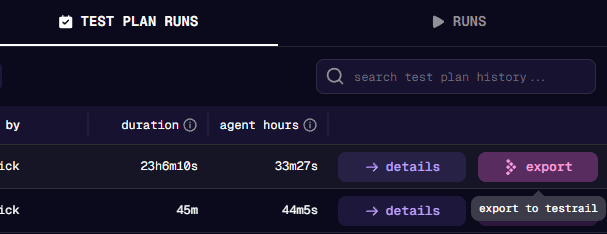

All completed runs within that test plan will be reported together.
What Gets Exported
When you export results to TestRail:
A Test Run Is Created
The test run in TestRail contains:
- All test cases linked to your test (both test-level and step-level)
- Run name based on your test name and execution details
- Description with links back to your Nexus test
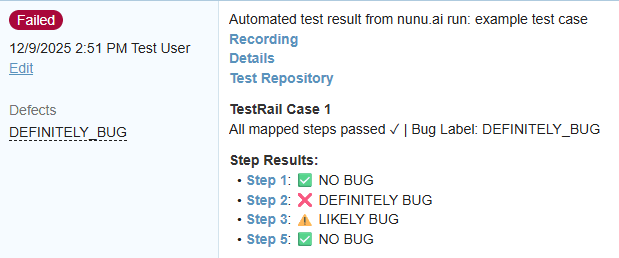
Each Test Case Receives
| Field | Content |
|---|---|
| Status | Mapped from your Nexus result (Passed, Failed, Retest, etc.) |
| Comment | Test result, bug label, duration, link to Nexus run, step breakdown (for step-level cases) |
Multi-Suite Exports
Due to a TestRail limitation, a single test run can only contain cases from one suite. When your linked cases span multiple suites, Nexus automatically creates a test plan with separate runs for each suite.
Example:
Your test links: C1 (Suite A), C2 (Suite A), C3 (Suite B)

Nexus creates in TestRail:
  Test Plan: "My Test - Run 12345"
    ├─ Test Run (Suite A): C1, C2
    └─ Test Run (Suite B): C3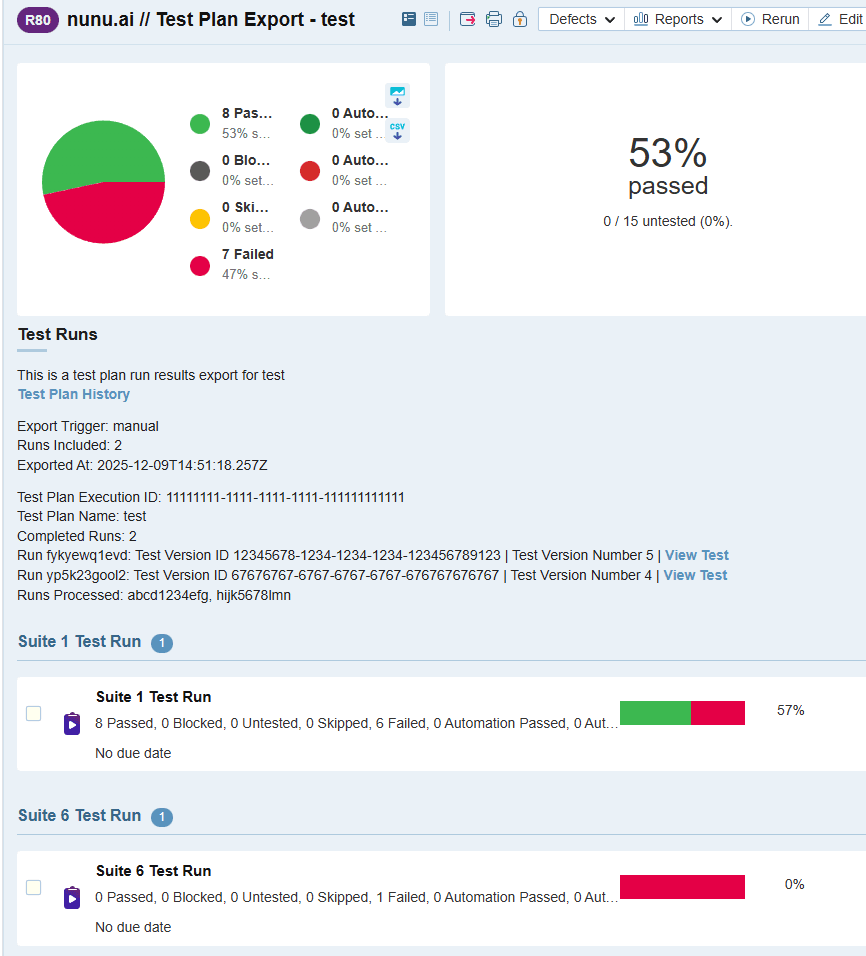
You don’t need to do anything different—this happens automatically based on your linked cases.
Troubleshooting
Cause: The test version you ran doesn’t have any TestRail cases linked.
Solution: Link cases to your test, save it, and run it again before exporting. You cannot link cases after a test has already run.
Cause: The test case has been deleted from TestRail.
Solution: Remove these cases from your test and select valid cases instead. You must remove missing cases before you can save.
Cause: The test case has been modified in TestRail since you linked it.
Solution: Re-open the case picker and confirm your selection to update to the latest version.
Cause: Some linked cases no longer exist in TestRail or belong to unconfigured suites.
Solution: This can be ignored if you expect some cases to be missing. Otherwise, remove missing or unconfigured cases from your test before exporting.
Possible causes:
- The cases are in a suite you haven’t configured—add the suite in Configs → TestRail
- The cache is outdated—click the Refresh button in the case picker
- The cases don’t exist in your TestRail project—verify in TestRail
- You are looking in the wrong TestRail project—ensure you’re using the correct project linked to your Nexus project
Frequently Asked Questions
Yes, but cases from removed suites will show as “unconfigured” (gray) and won’t be exported. You’ll need to update your tests to link cases from the configured suites.
Yes, each export creates a new test run in TestRail. Previous exports are not affected. There is no deduplication—be aware that exporting the same run multiple times will create multiple test runs in TestRail.
Each step-level case receives a detailed comment showing the results for that specific step, including the step number, goal, and expected results.
No, you can only link cases from the single TestRail project configured for your Nexus project as of now.
Tips and Best Practices
Organizing Your Cases
- Use consistent naming conventions in both Nexus and TestRail
- Keep your TestRail suite structure aligned with your Nexus test organization
- Use sections in TestRail to group related test cases
Keeping Cases Synced
- Regularly check for outdated cases (orange labels) and refresh them after verifying the changes
- Set up a process to update Nexus when cases are modified in TestRail
- Use the refresh button before selecting cases if you’ve recently made changes in TestRail
Managing Status Mappings
- Start with basic mode and default mappings
- Only switch to advanced mode if you need different mappings for different run results
- Document your custom mappings for your team
Version Control
- Remember that cases are linked to specific test versions
- If you update case links, it will create a new test version
- Historical runs will always reference the cases that were linked at the time of execution
Related Documentation
- TestRail Setup - Configure the TestRail integration
- Linking Cases - Link TestRail cases to your tests
- History - Review test runs, test plan executions, and run details