Bugs
Bug Review is not enabled by default
Contact your project admin to enable this feature, or learn how to enable it yourself if you have admin access.
Bug Review helps you triage issues detected by the AI Agent, track confirmed bugs, and teach the agent which reports are false positives.
Overview
The Reviewed Bugs view has two tabs: Bugs and Ignored Issues.
Bugs Tab
This tab displays issues confirmed as real bugs. Use the active and all views to switch between active and archived bugs. From a bug row, you can:
- Open its details
- edit bug
- copy link
- archive bug
The edit form includes title, description, reproduction steps, severity, category, and external links. Each external link has a name and url, and you can select + add entry to add another link.
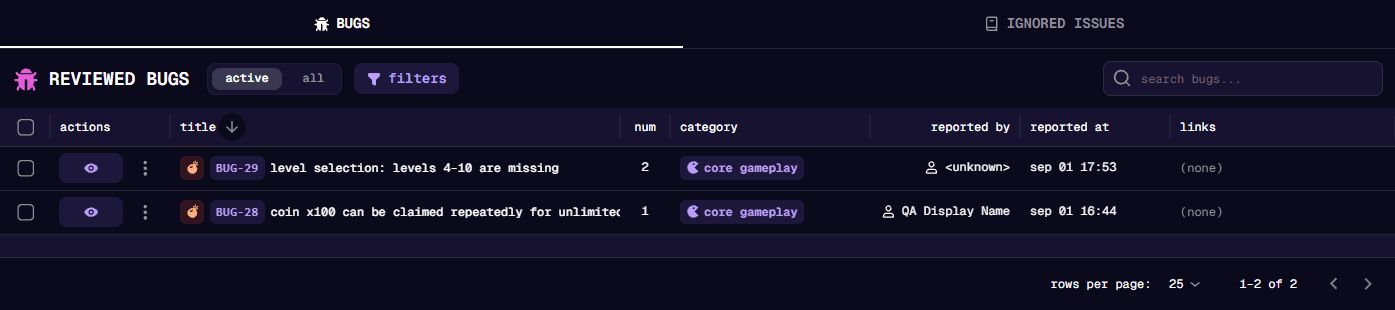
This tab is not filled automatically with every reported issue. You must confirm an occurrence with IT’S A BUG during review for it to appear here.
Bug Details
Open a bug to see its report fields and occurrences table. Occurrences identify the run and reviewer and include the screenshots and occurrence details captured during review. You can also copy link, edit bug, archive bug, or select back to reviewed bugs.
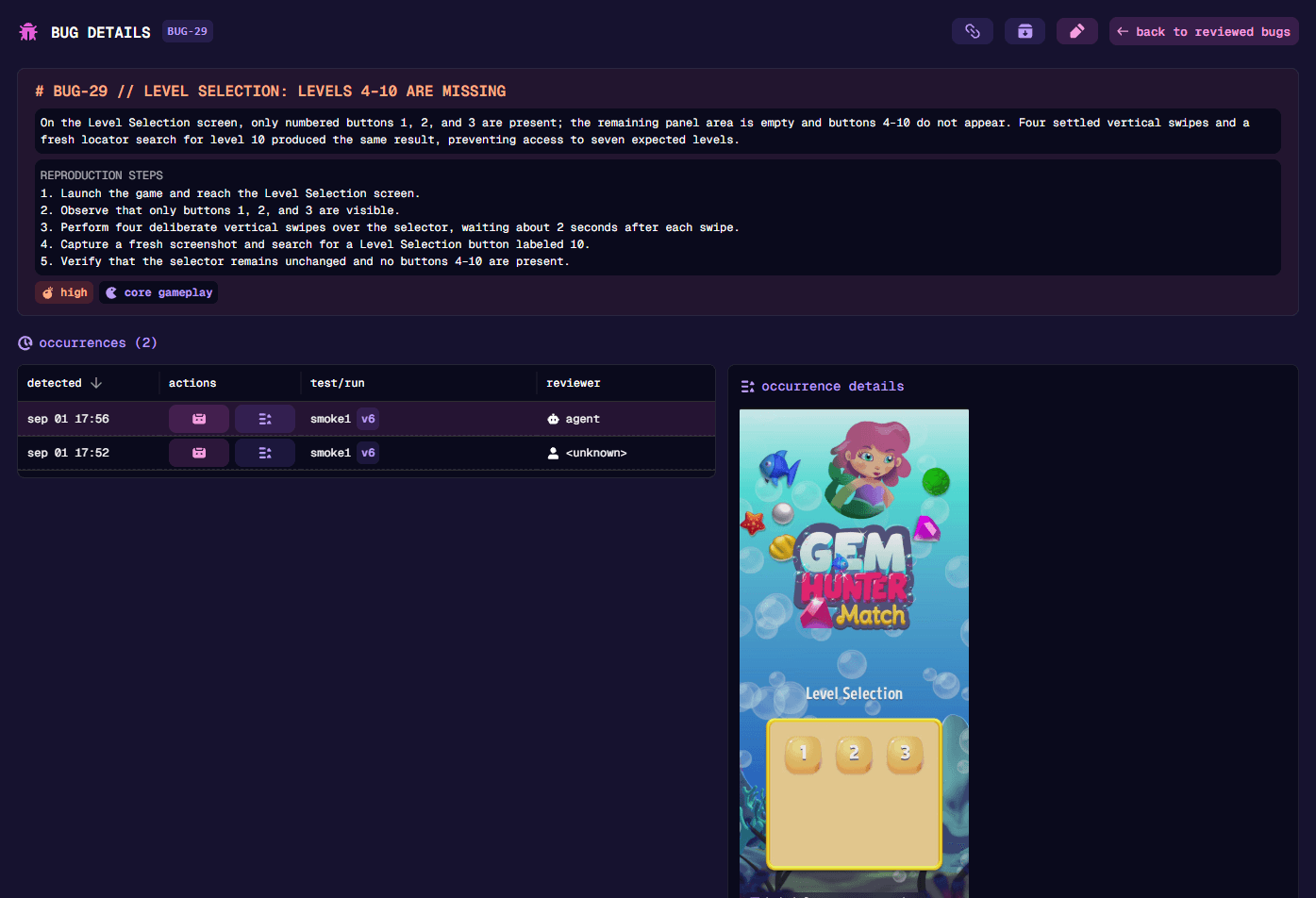
Archiving Bugs
When a bug is fixed, select archive bug from its row or details page and confirm the action. The bug is removed from the active view but remains available in all.
Archiving cannot be undone. Make sure the bug is actually fixed before archiving.
Ignored Issues Tab
This tab lists reports classified as NOT A BUG and saved with add to ignored issues. The AI Agent uses the expected behavior you provide to avoid reporting similar false positives in future runs.
From an ignored issue row, you can open view details, edit ignored issue, or copy link. The details page shows the issue, its EXPECTED BEHAVIOR, and an occurrences table.
By curating this list, you can reduce noise and improve the accuracy and reliability of the AI Agent.
Ignored Issue Expiration
Ignored issues can expire after a configured number of days. When expired:
- The issue remains in your list but shows a warning indicator
- Expired issues are not included in the agent’s context
- The agent may start reporting similar issues again
Why expiration exists:
- Keeps the agent’s context fresh and relevant
- Prevents accumulation of outdated rules
- Ensures ignored issues are periodically reviewed
To prevent expiration:
- Select the ignored issue you want to keep active
- Select the refresh action
- This updates the modified date, resetting the expiration timer
The expiration time is configured at the project level. Contact your admin if you need to adjust it.
Review Workflow
When the AI Agent detects a potential bug during a test run, it creates a bug occurrence that needs review.
Quick tip: Saving repeatable false positives with add to ignored issues has the greatest impact on future reports because the expected behavior is added to the agent’s context.
Starting a Review
- Go to History → Runs
- Open the recording for a run with reported bugs
- Navigate to a bug occurrence
- Select review, or press
B
The dialog asks WHAT IS THIS REPORT, REALLY? and provides three classifications:
- IT’S A BUG
- TEST CASE NEEDS UPDATING
- NOT A BUG
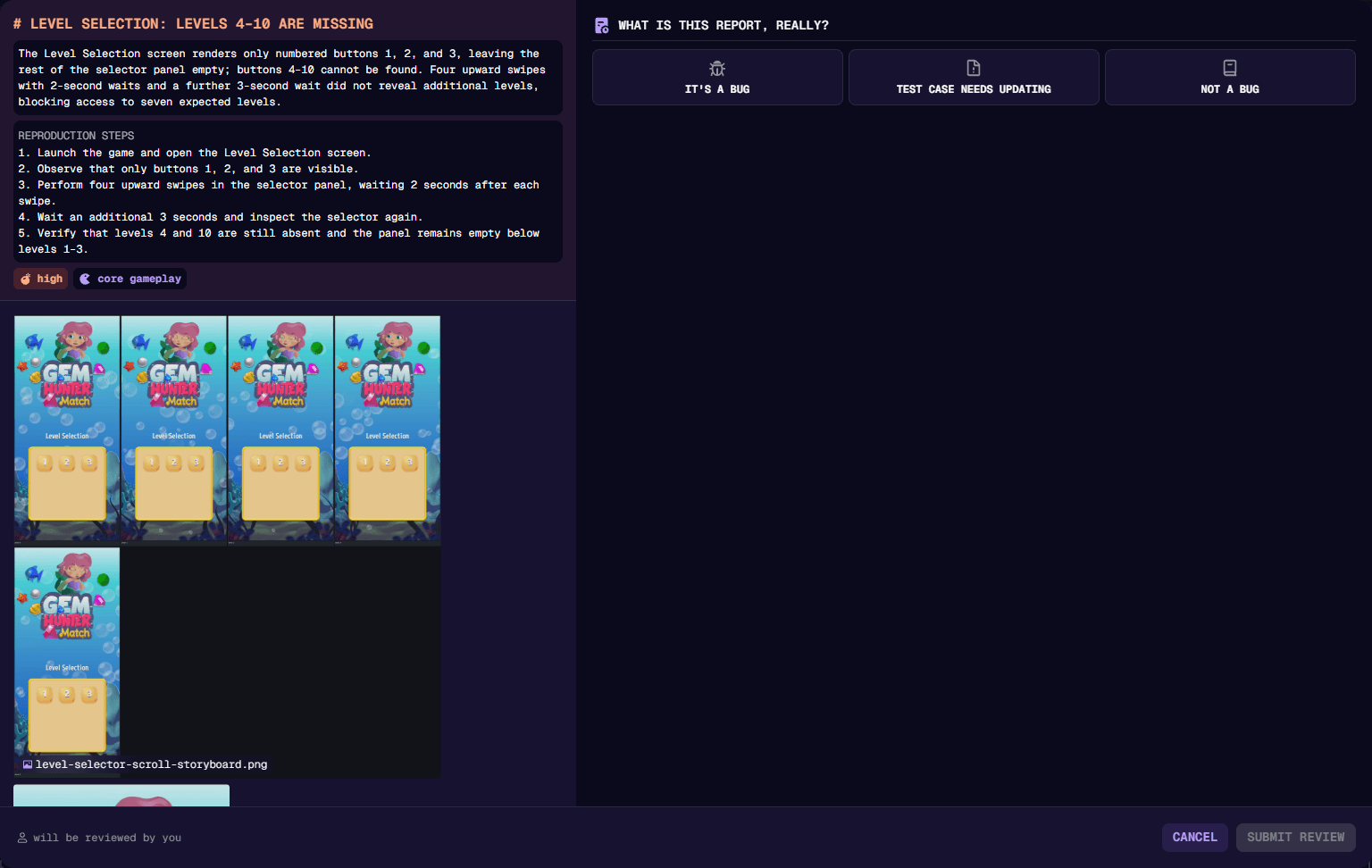
Select SUBMIT REVIEW to finish the occurrence or CANCEL to close the dialog without submitting it.
Review Actions
It’s a Bug
Choose IT’S A BUG when the report describes a genuine issue in the application. Then choose what should happen to the occurrence.
File a New Bug
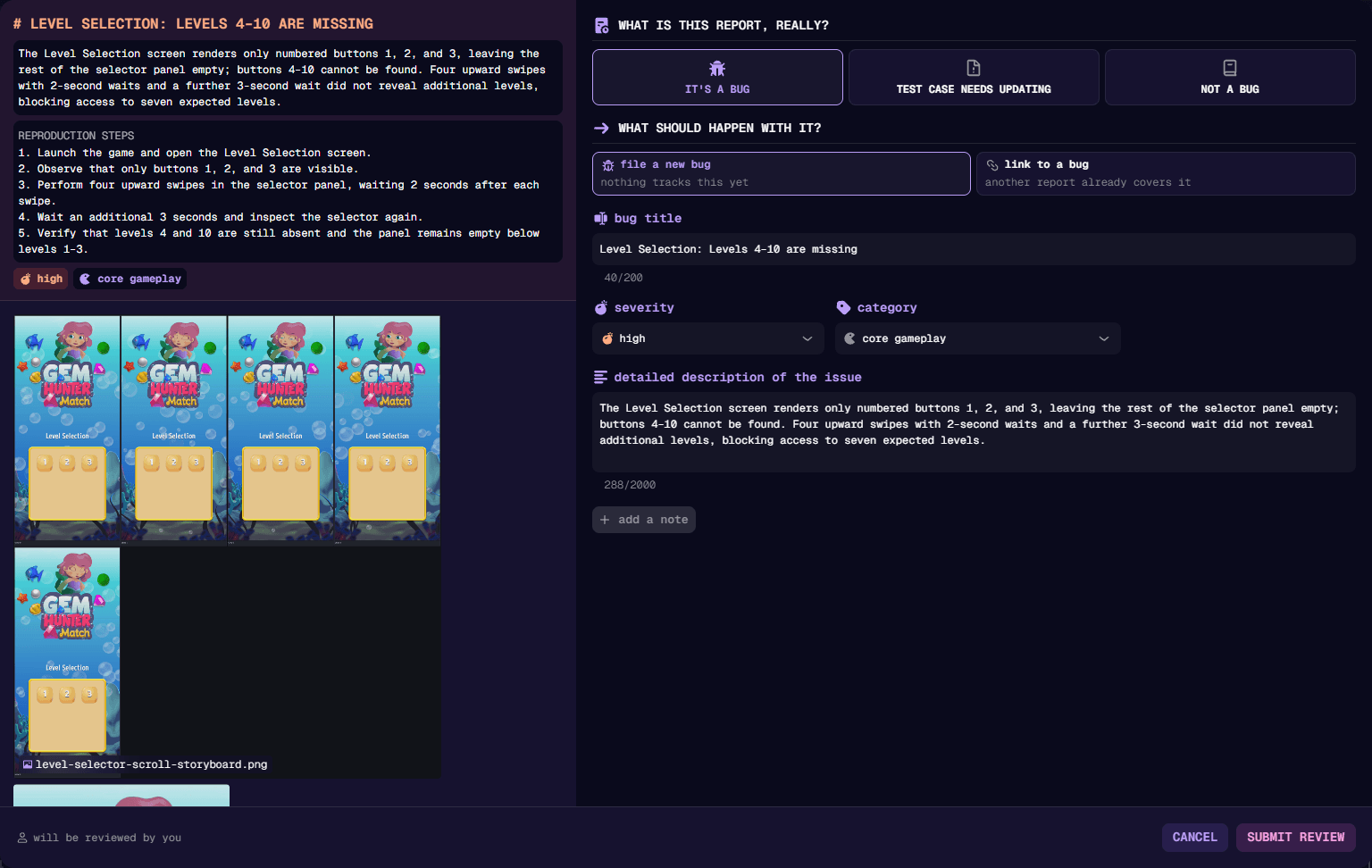
Select file a new bug when nothing tracks this yet. The form is prefilled from the report and includes:
- bug title
- severity
- category
- detailed description of the issue
- add a note
Submitting creates a record in the Bugs tab and adds this report to its occurrences.
Link to a Bug
Select link to a bug when another report already covers it. Under which bug is it?, search with search existing bugs… and select a result. The footer prompts you to pick the bug to link to until a bug is selected.
You rarely need to link repeat occurrences manually. The AI Agent reliably recognizes matching root causes and symptoms and automatically links most duplicates to the reviewed bug. Use this action when a match was missed or when you want to link the occurrence to a different bug.
Test Case Needs Updating
Choose TEST CASE NEEDS UPDATING when the report indicates that the test instructions or guidance should change rather than the application.
Under which step needs the fix?, use the step controls to select the affected step. The dialog shows the step number, marks the location reported here, and provides scope, show hint manual, and review comment (optional). The review comment placeholder is note what the step should ask for instead….
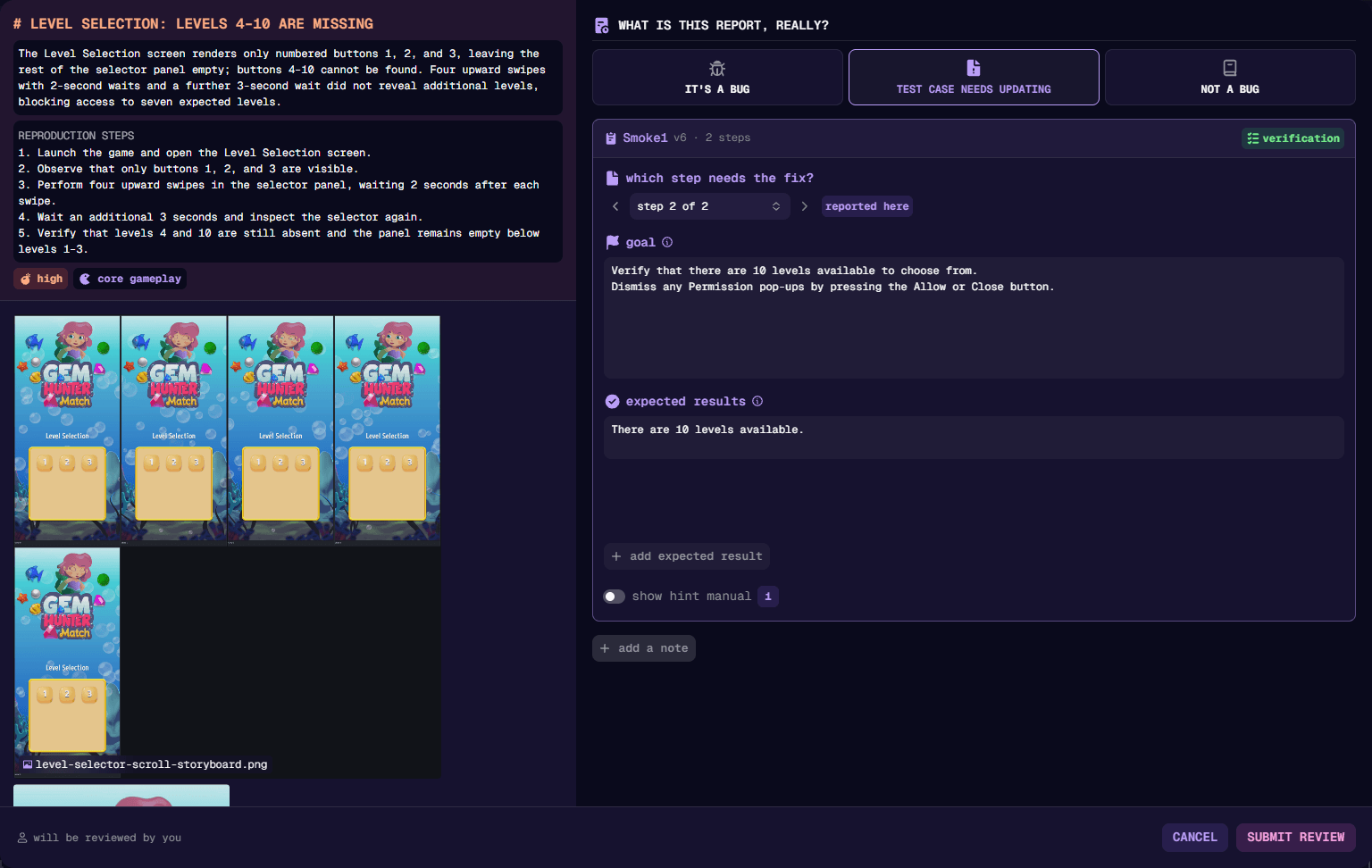
The hint manual opens in simple mode with add your first hint to get started, + add hint, and the placeholder enter hint here…. Select advanced mode to use + add manual entry; the advanced view includes general hints and shows no hint selected until you choose an entry.
Not a Bug
Choose NOT A BUG when the agent was wrong or the environment caused the report.
Under what went wrong?, select one reason:
- agent error
- environment issue
- config error
- not reproducible
- other
Then use WHAT SHOULD HAPPEN WITH IT? to choose an outcome.
Just Mark Reviewed
Select just mark reviewed for a one-off, nothing to keep. You can enter a review comment (optional). The occurrence is marked as reviewed without creating or linking a bug or ignored issue.
Add to Ignored Issues
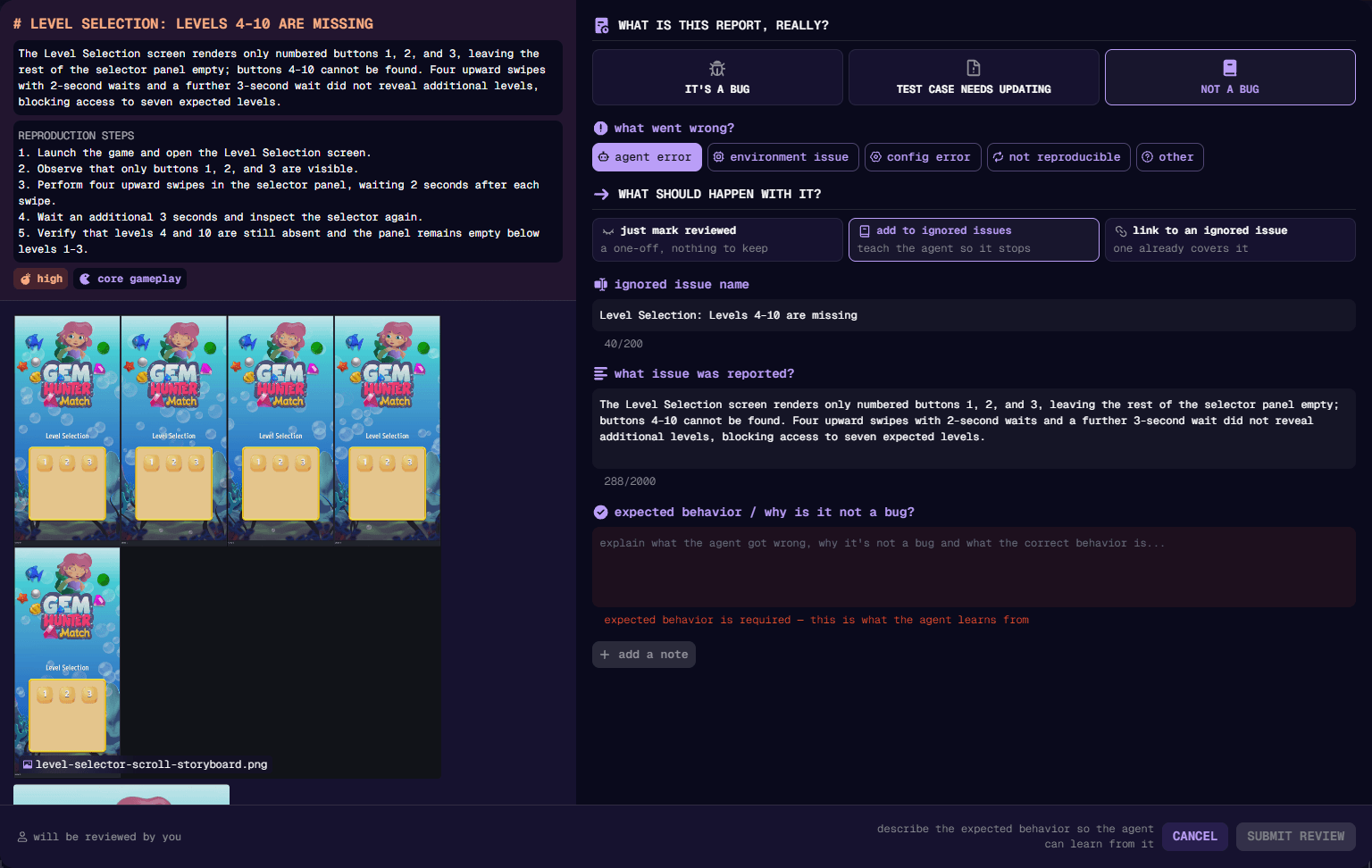
Select add to ignored issues to teach the agent so it stops. The form includes:
- ignored issue name
- what issue was reported?
- expected behavior / why is it not a bug?
The expected behavior placeholder is explain what the agent got wrong, why it’s not a bug, and what the correct behavior is…. It is required; when empty, the dialog shows expected behavior is required - this is what the agent learns from and prompts you to describe the expected behavior so the agent can learn from it.
Link to an Ignored Issue
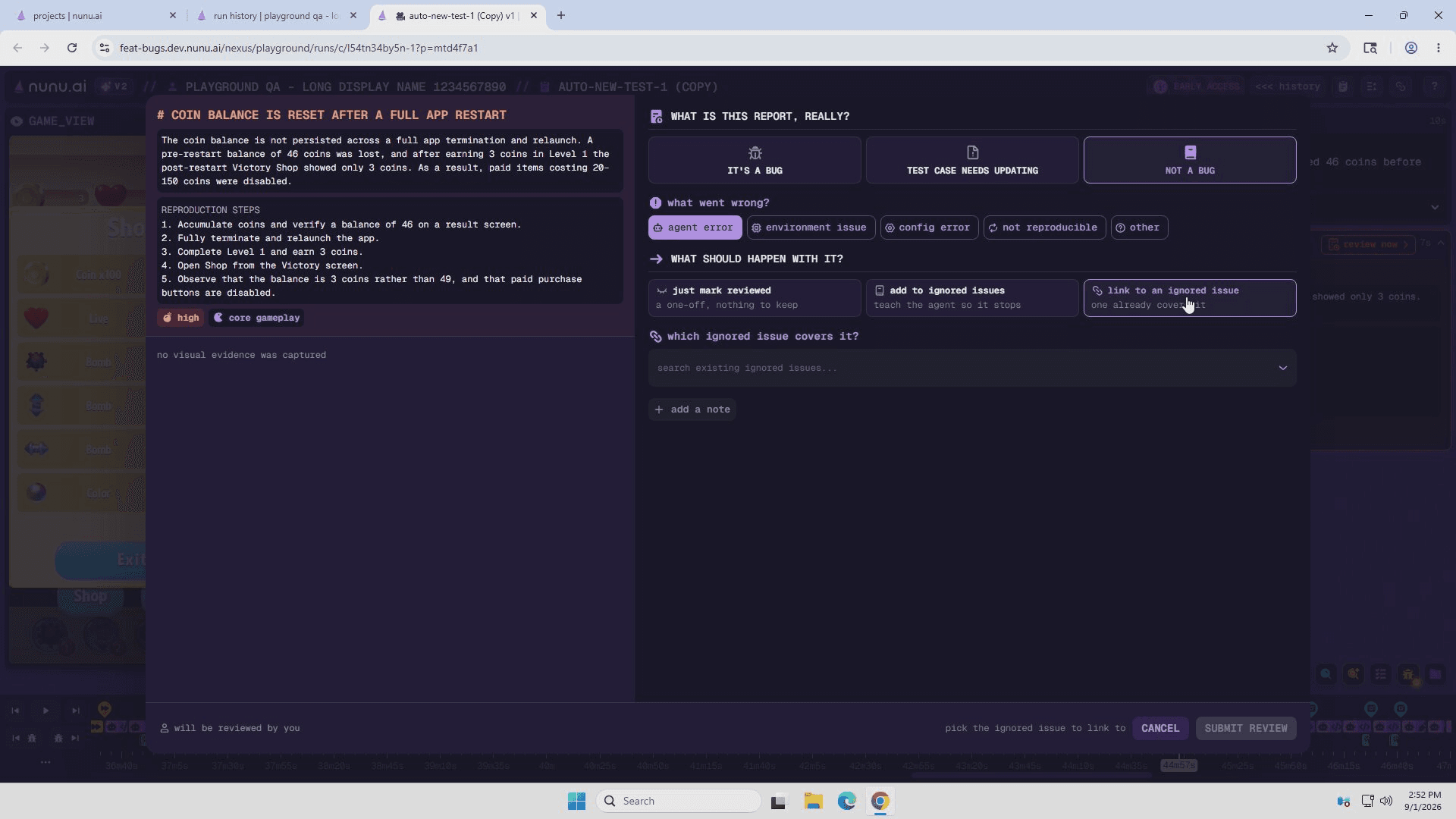
Select link to an ignored issue when one already covers it. Under which ignored issue covers it?, search with search existing ignored issues… and select a result. The footer prompts you to pick the ignored issue to link to until an issue is selected.
Automatic Agent Linking
Reviewed bugs and ignored issues become part of the bug-review context for later runs. When the AI Agent verifies that a new occurrence has the same root cause and symptoms as an item in that context, it reports the occurrence as a duplicate and links it to the existing item.
The linking flow looks like this:
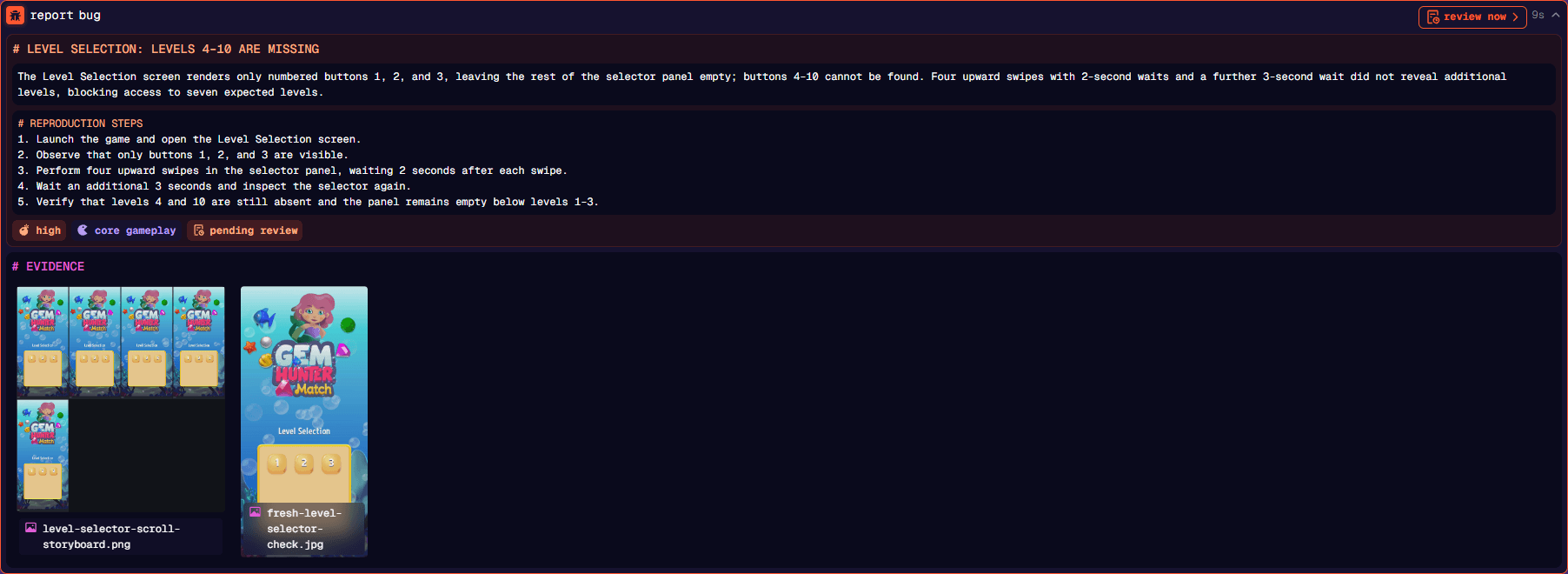
-
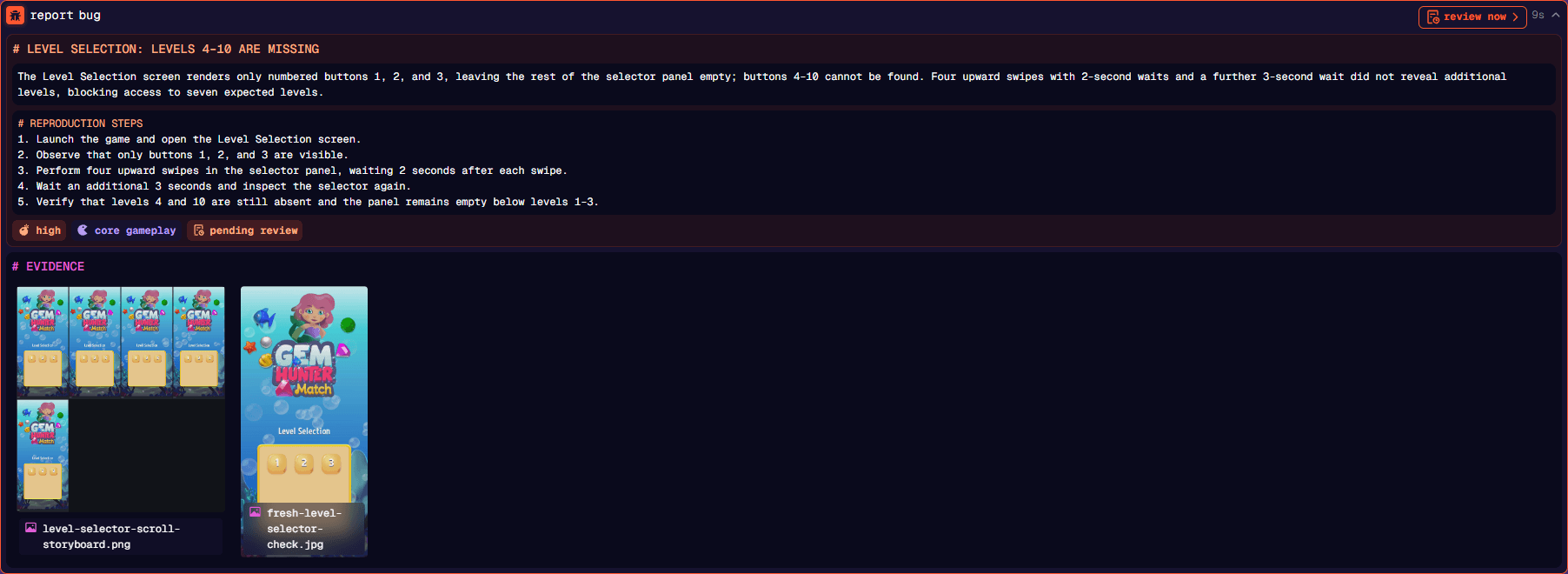
A new unmatched occurrence is marked pending review and shows review now.
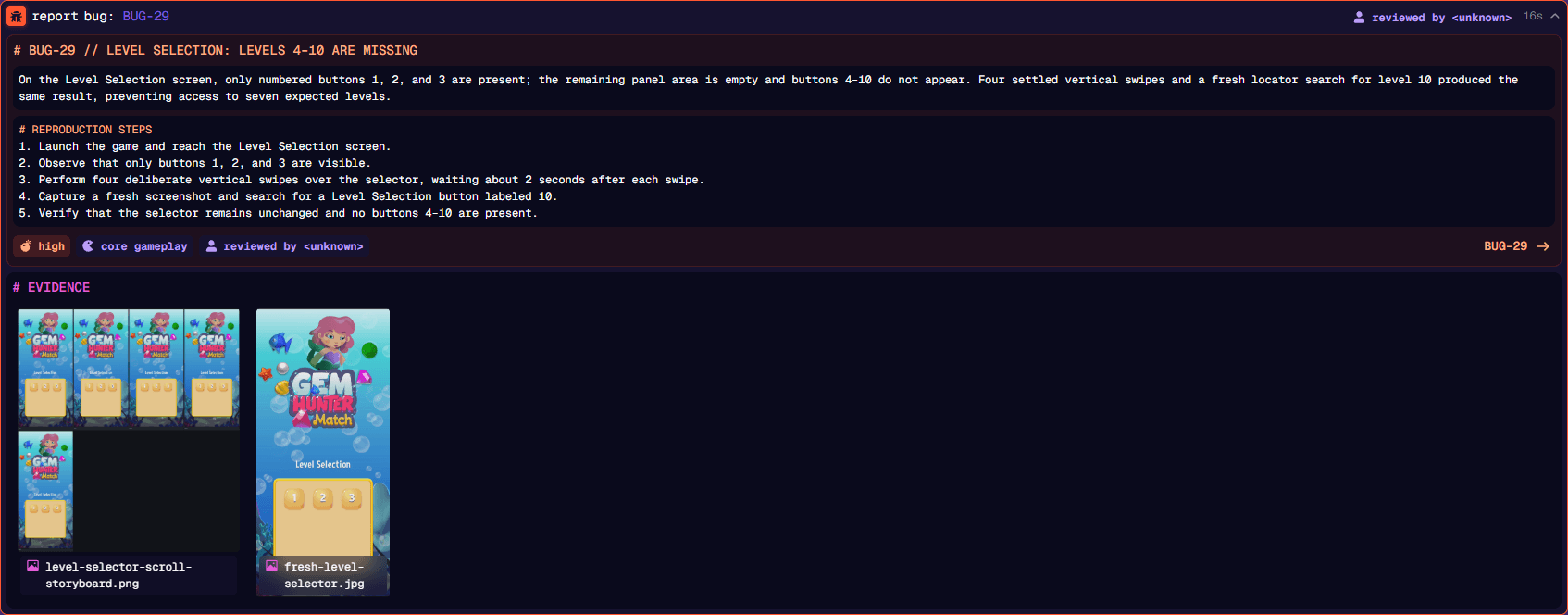
-
A reviewer confirms the occurrence and files or links it. The reviewed report shows the canonical short ID and keeps its selected visual evidence.
-
On a later run, a matching occurrence is marked auto-linked by agent and points to the same canonical bug or ignored issue.
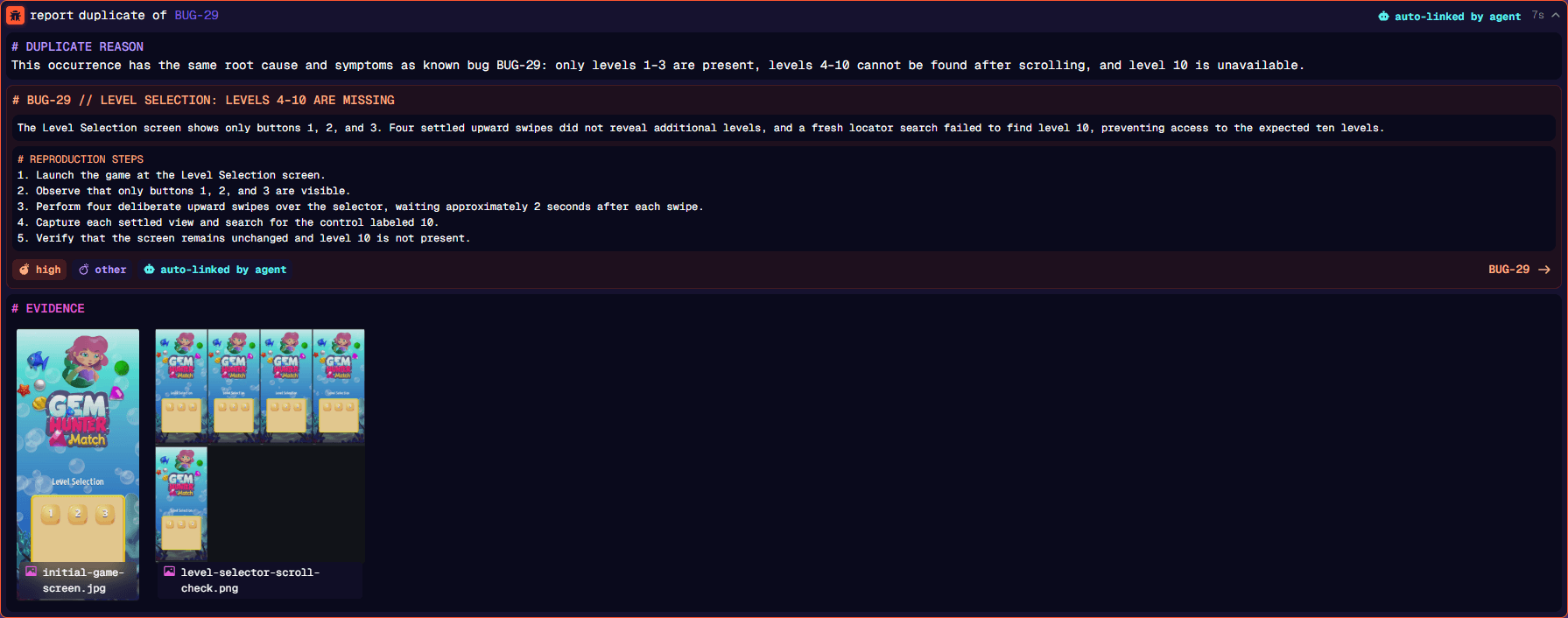
Auto-linked occurrences do not create another top-level bug or add work to the human review backlog. The occurrence and its evidence remain available from the linked item, and you can select its short ID to open the canonical record.
Automatic linking requires a match on the underlying cause and symptoms, not just a similar title. If the agent cannot resolve the match to an item in its supplied bug-review context, the occurrence remains pending for a person to review.
Review Status Tracking
The review column in run history shows outstanding triage work:
- pending: No reported bugs in the run have been reviewed
- partial: Some reported bugs have been reviewed; hover the badge to see progress such as 1 out of 6 bugs reviewed
- No badge: The run has no pending bug reviews
Occurrences marked auto-linked by agent are already resolved and are excluded from the human review totals.
Use the run filter field pending review with true, false, or any to filter this state.