Repository
Open Tests → Repository to create, organize, edit, and run your project’s tests. Browse folders or use search and filters to find tests by name, tags, and other properties.
Use the row’s play button to start a test and edit to open its editor. The row menu includes quarantine test, which excludes the test from test plan executions. Choose restore test to include it again.
Creating a New Test
- Click create new and choose Verification, Discovery, or Task.
- Enter a name and tags, and set the test’s time budget.
- Select an agent configuration and, when available, credentials for the agent to use.
- Fill in the content for your test type:
| Test type | Editor content | Time budget |
|---|---|---|
| Verification | Ordered steps with goal/instructions, individual expected results, and optional hints | Maximum time for the whole test |
| Discovery | Optional scope and hints to guide exploration | Minimum and maximum time for the whole test |
| Task | Task instructions, optional personality instructions, and hints | Minimum and maximum time for the whole test |
Click Create Test to save a new test or Update Test to save edits. Manage versions lets you inspect saved versions; open the latest version to edit it.
For multiple agents, use add player in the bottom action bar. Each player has its own agent configuration and test content. See Multiplayer Tests for coordination and screen sharing.
Knowledge and Memory
After saving a test, attach knowledge files, such as feature specs or reference images, in its knowledge panel. When Knowledge Base is enabled, the memory control offers disabled, auto (inherit the project default), and enabled to control learning across runs of this test.
Additional Options
Open show additional options on a player’s card to configure device behavior:
| Option | Use |
|---|---|
| Geolocation | Select the mobile device’s IP region. |
| GPS location | Set coordinates; auto uses coordinates for the selected geolocation. |
| Auto-grant permissions | Automatically accept permission dialogs. |
| Network logging | Capture HTTP/HTTPS traffic as a HAR artifact. The app is re-signed, which can affect certificate pinning. |
| Screenshot unblock | Re-sign an Android app to bypass app-level screenshot blocking. |
| Share screen | Let other agents in a multiplayer test request screenshots from this player’s device. |
See Mobile Network and Mobile Devices for device support and configuration details.
Collections
In verification tests, click new step to add a step. Drag steps to reorder them. Use new collections in the action bar to select steps and give the group a name, such as Setup or Checkout.
Collections can be renamed, reordered, or dissolved to ungroup their steps. To reuse a collection across verification tests, promote to shared steps and save the test. See Shared Steps for creating, importing, and maintaining reusable collections.
Run a Test
- Click the test’s play button.
- Choose a deployment configuration and a build when the deployment uses one.
- For a templated test, fill in template parameters under advanced settings. These open automatically when the test contains variables.
- Click Confirm. Nexus opens Live View to show the agent’s progress.
With Cross-Platform Multiplayer enabled, configure each player separately lets you select a deployment config and build for every player. Otherwise, the shared selection applies to all players.
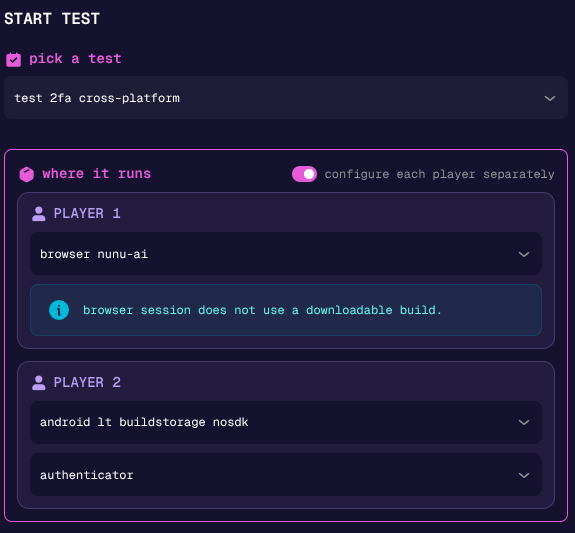
This configuration runs player 1 in a browser and player 2 on Android.
Review completed runs in History. To run tests together or supply several template variants, use Test Plans.