Linking TestRail Cases
Once TestRail is configured for your project, you can link TestRail test cases to your Nexus tests. This allows you to export test results and keep both systems in sync.
To link cases, you need the project:edit-tests permission (or
project:edit-configs, project:admin, or org:admin).
Test-Level Linking
Link TestRail cases to your entire test when the test corresponds to one or more complete test cases in TestRail.
Open the Test Editor
Navigate to your test in the test repository and open it for editing.
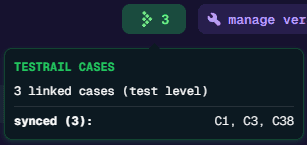
Click the TestRail Button
In the test editor header, click the TestRail button. If cases are already linked, the button shows a count.
Select Cases
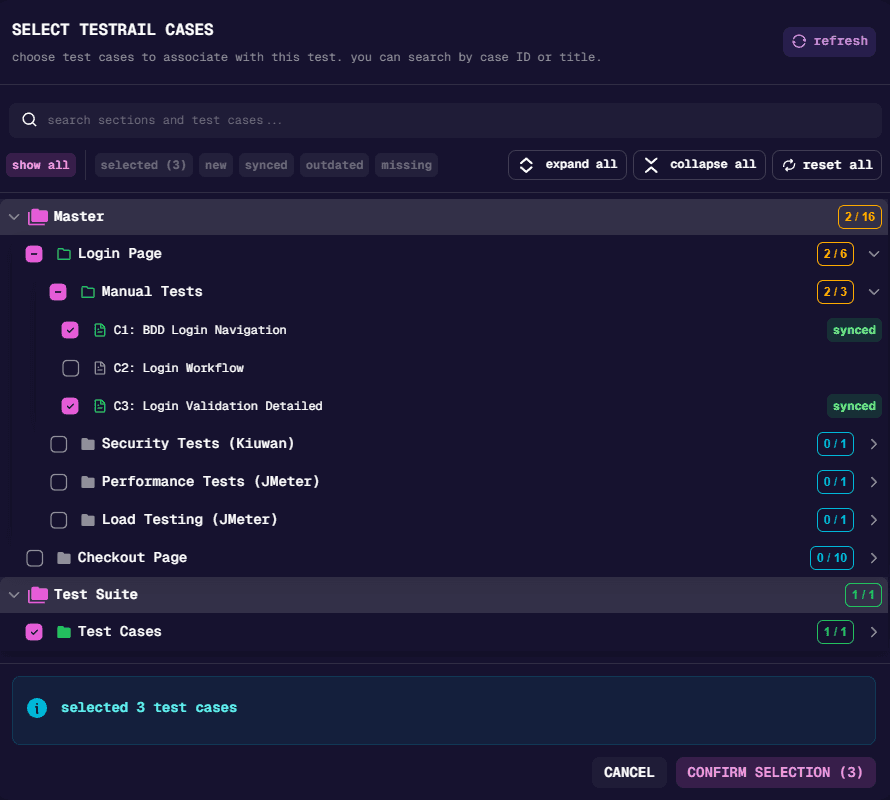
Browse or search for test cases in the picker dialog, then select the cases you want to link.
Confirm Selection
Click Confirm Selection to save your linked cases.
Step-Level Linking
Link TestRail cases to individual test steps when you need more granular tracking. This is useful when a single Nexus test covers multiple TestRail test cases at different stages.
Open the Test Editor
Navigate to your test and open it for editing.
Expand the Step
Find the step you want to link cases to and expand it.
Click the Step’s TestRail Button
Click the TestRail button in the step header.

Select and Confirm
Select test cases from the picker and click Confirm Selection.
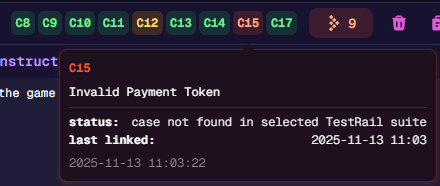
Linked cases appear as colored labels on your steps. Hover over any label to see sync details:
- Green: Case is synced and up-to-date
- Orange: Case is outdated (modified in TestRail)
- Red: Case is missing (deleted from TestRail)
You can use both test-level and step-level linking together. All linked cases (from the test and all steps) will be included when exporting results.
Using the Case Picker
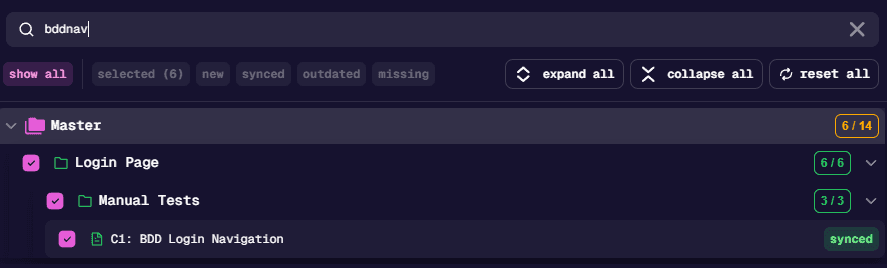
The case picker helps you find and select TestRail cases efficiently.
Organization
- Cases are organized by suite and section
- Sections can be expanded and collapsed
- Sub-sections are indented for clarity
Search
- Search by case ID (e.g., “C123”) or case title
- Results update as you type
Bulk Operations
- Click the checkbox next to a section to select all cases in that section
- Use All to select all visible cases
- Use Clear to deselect all cases
Refreshing Data
Click the Refresh button to fetch the latest data from TestRail. This is useful after creating new cases in TestRail.
Understanding Case Status
The integration tracks sync status using colored labels. Hover over any label to see additional details.
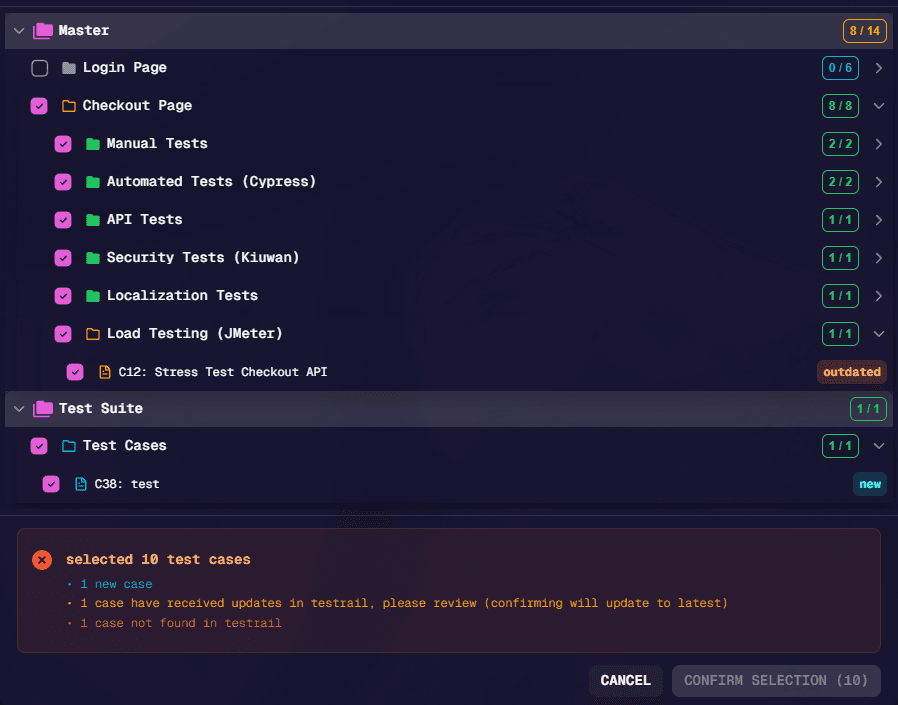
| Color | Status | Meaning |
|---|---|---|
| Green | Synced | Case is up-to-date with TestRail |
| Orange | Outdated | Case has been modified in TestRail since you linked it |
| Red | Missing | Case no longer exists in TestRail |
| Blue | New | Case is newly selected (not previously linked) |
| Gray | Unconfigured | Case belongs to a suite not in your configuration |
Keeping Cases in Sync
When Cases Are Outdated (Orange)
The case has been modified in TestRail since you linked it:
- Hover over the case label to see when it was last synced
- Re-open the case picker
- Confirm your selection to update to the latest version
When Cases Are Missing (Red)
The case has been deleted from TestRail:
- You must remove these cases before you can save
- Click the remove button on the label, or deselect them in the picker
- Save your test
When Cases Are Unconfigured (Gray)
The case belongs to a suite that’s not in your TestRail configuration. You can either:
Option 1: Add the suite to your configuration
- Go to Configs → TestRail
- Add the suite to your configuration
- Return to your test and the cases will be available
Option 2: Leave them as-is
Unconfigured cases will simply be skipped during export. This is fine if you no longer need to report results for those cases.
Important Notes
TestRail cases must be linked to your test before you run it. You cannot link cases to a test after it has already run.
This ensures that test results always match the exact version of the test that was executed.
Correct workflow:
- Edit your test and link TestRail cases
- Save your test
- Run your test
- Export the results
Next Steps
After linking cases to your tests, you can run them and export results to TestRail.
Continue to Exporting Results to learn how to send your test results to TestRail.