Start your first Run
You can also get started through your AI assistant with the MCP Quickstart.
This guide will walk you through the process of starting your first test or task using a nunu.ai Agent:
Upload your Build
To run anything, we first need a build to test. Upload your build (game.ipa, app.apk, build.zip, …) in the Build Storage tab on nexus.
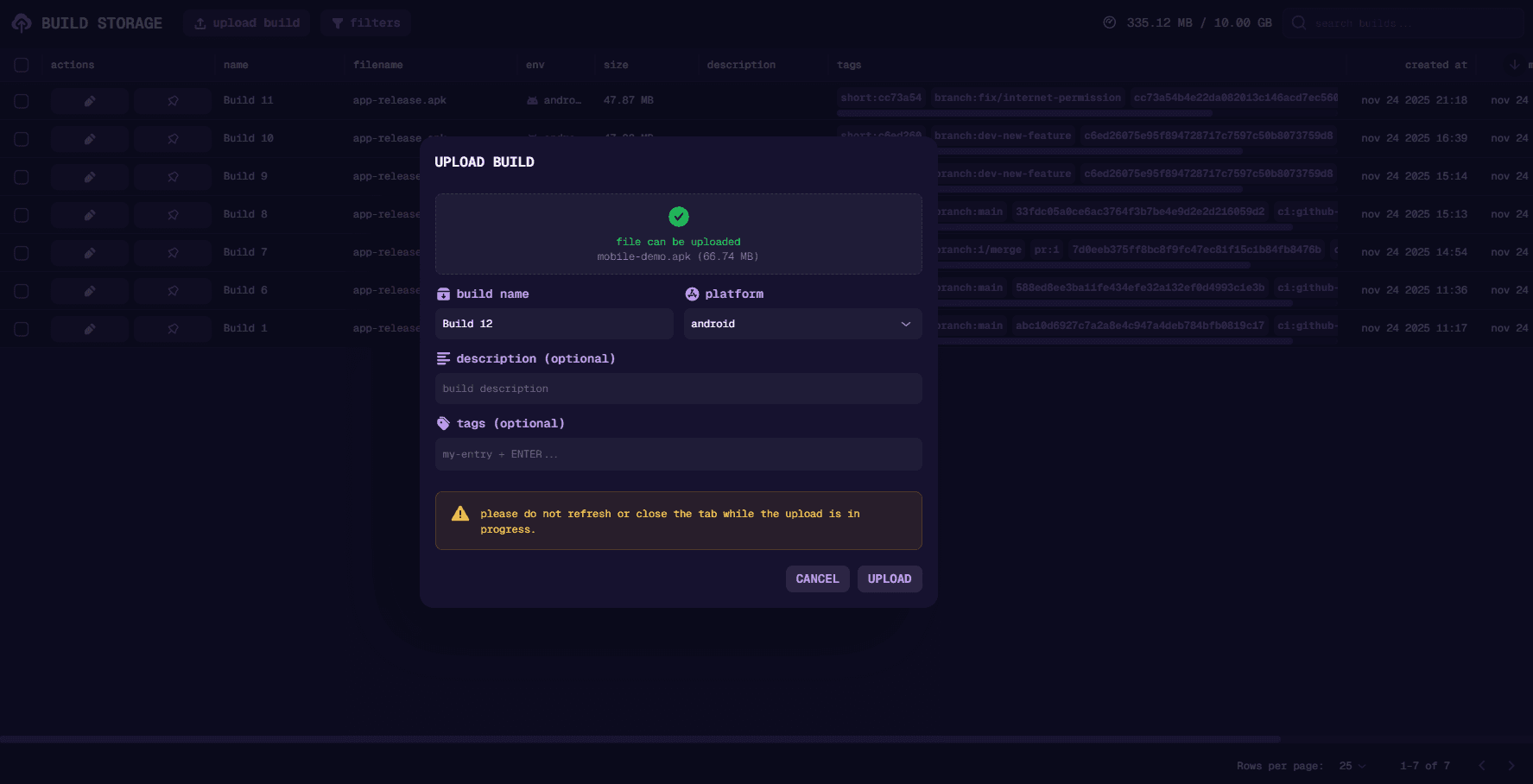
For more information on Build Storage, visit Build Storage.
Create a Test/Task
Open Tests -> Repository and create your very first test. To start out, let’s create a simple discovery test that explores the whole game.
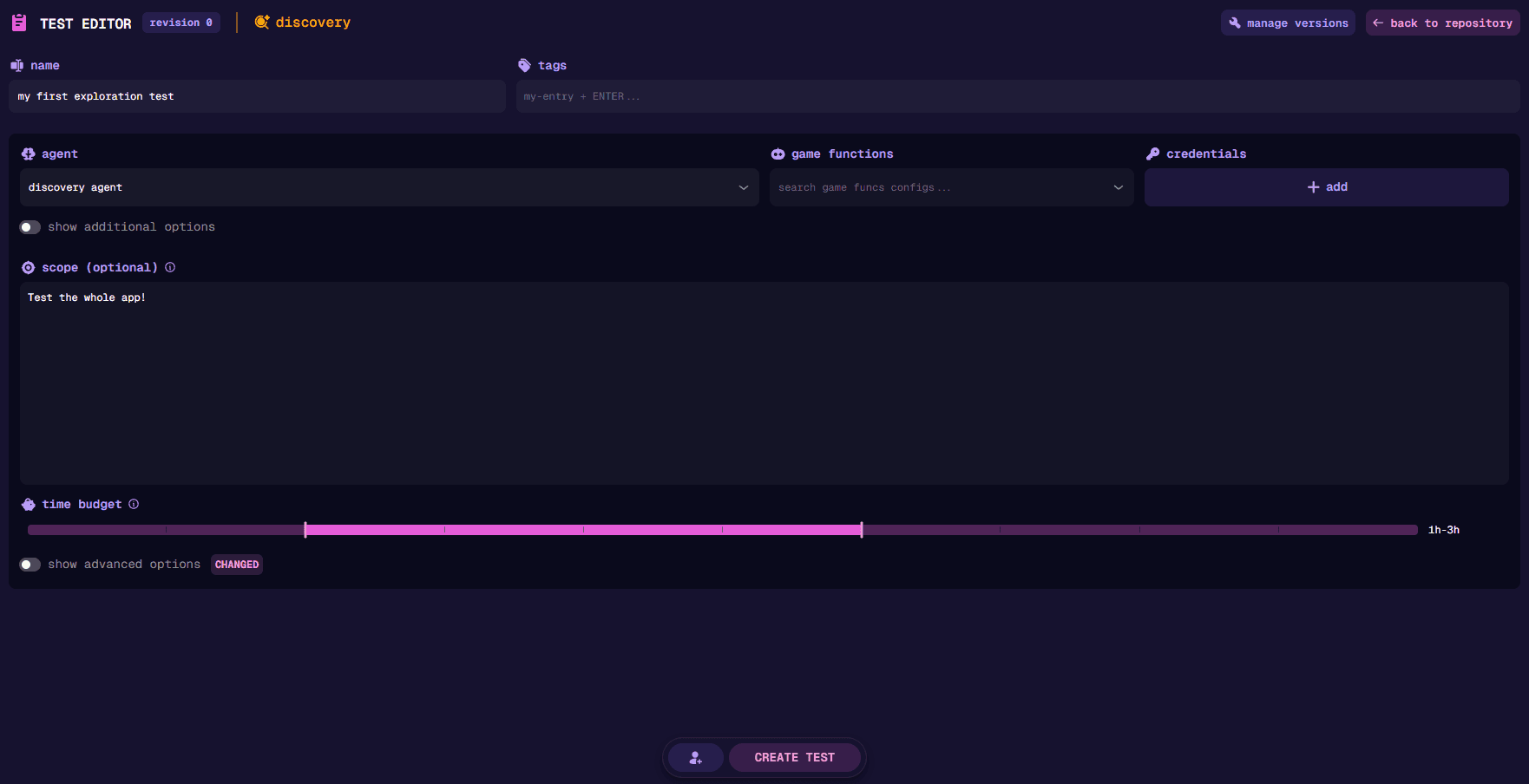
Writing good test cases is a skill that can be learned. Read our Writing Tests Guide to write effective test cases.
Run
Click on the Play button to open the start test dialog. Choose the deployment config that matches the platform of your build and the build you just uploaded, then click Confirm.
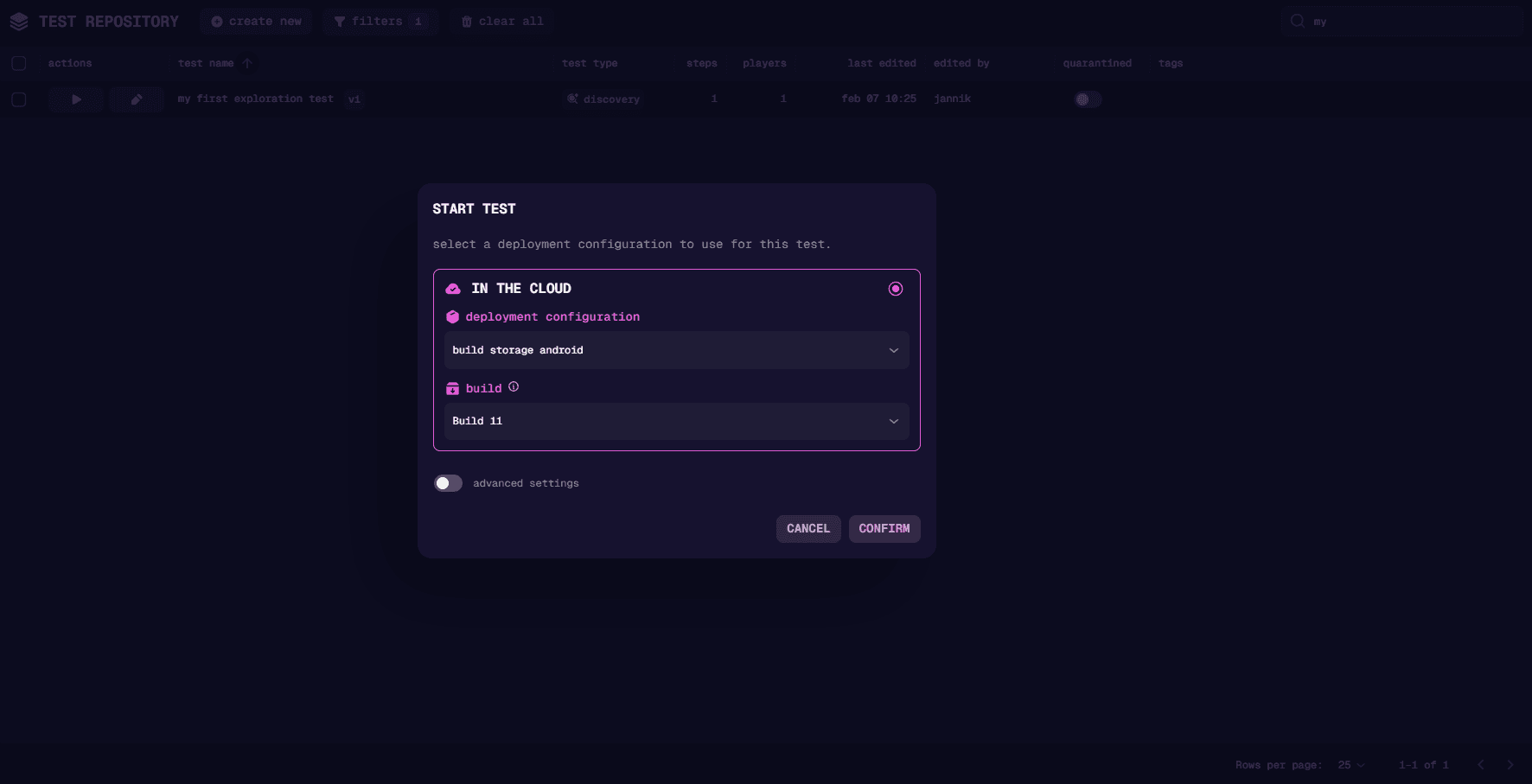
You’ll be redirected to the live page, where you can now see your device and agent being set up. After a while, you’ll see run card change into active and you can click on watch live to see the test run in real-time. Since the test will take a while to complete, ideally you go and do something else and come back later to see the results.
Looking at the results
After the run completes, find it under History → Runs. Open report for a summary of the agent’s activity and findings, details to inspect steps, checks, artifacts, and logs, or recording to review what the agent sees and does.
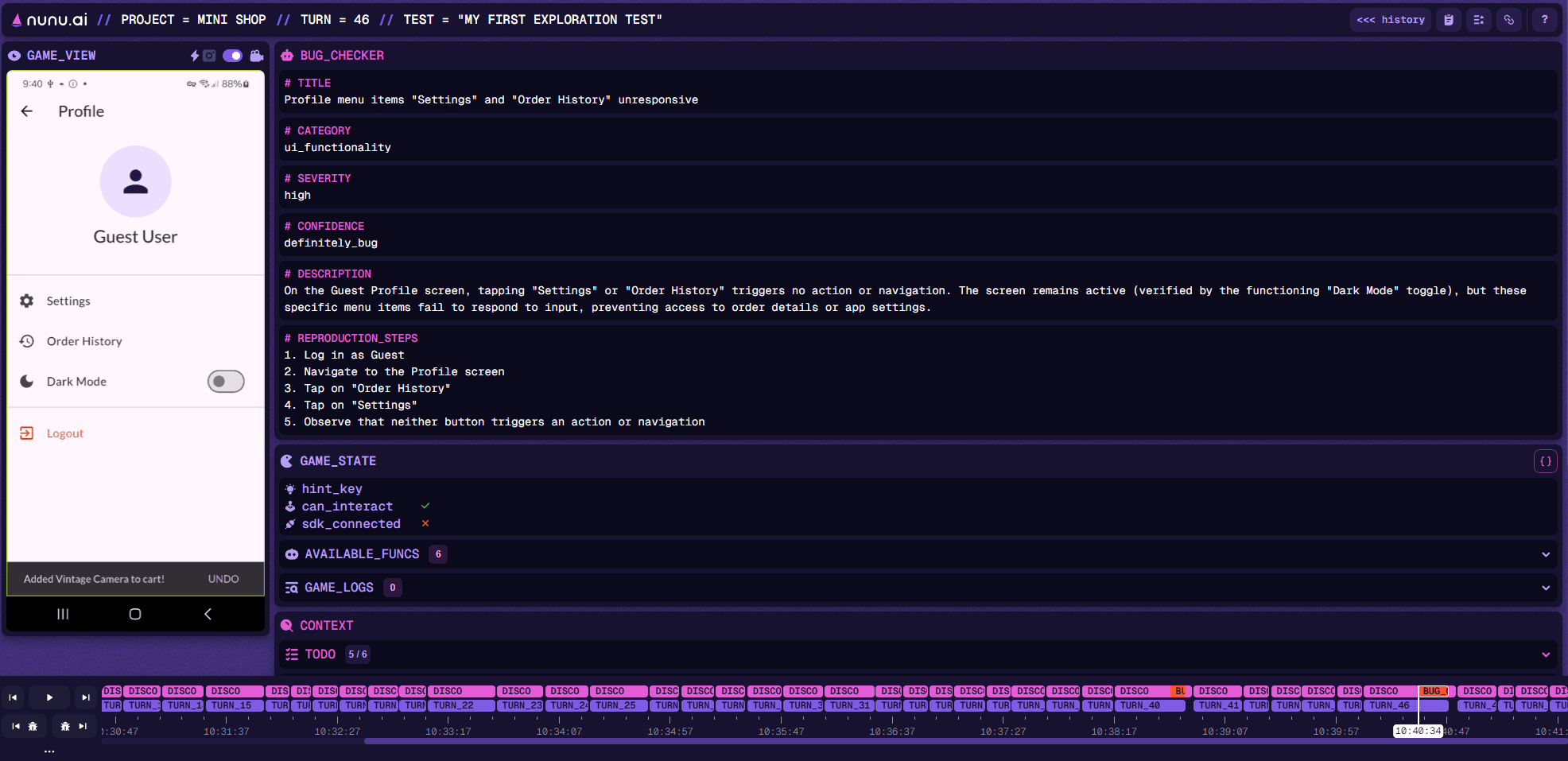
The recording view allows you to review runs in detail and double-check bugs that were found.
Congratulations 🎉! You just completed your first run using the nunu.ai Agent.