Run Triggers
To access the Configs tab, you’ll need the project-view-configs permission,
which is available to users with the Config Manager role or other roles that
include this permission.
Run Triggers allow you to automate the execution of test plans in Nexus. Instead of manually starting test runs, you can configure run triggers to automatically initiate tests based on specific events or schedules. This automation helps maintain consistent testing practices and ensures your application is regularly validated without manual intervention.
Run Triggers integrate seamlessly with your CI/CD pipeline, allowing you to incorporate automated testing into your development workflow. When a run trigger is activated, it will execute the specified test plan using the deployment configuration you’ve defined.
Nexus supports three types of run triggers: Webhook, Cron, and Build Storage. Below you’ll find detailed documentation for all options.
Webhook (Invoked by External Systems)
Webhook triggers allow external systems to initiate test runs in Nexus. When you create a webhook trigger, you’ll receive a unique URL that can be called by your CI/CD pipeline, version control system, or any other tool that supports HTTP requests.
When the webhook is called, it will automatically start the test plan you’ve configured with the deployment configuration you’ve specified. This is particularly useful for automating test runs after new builds are deployed or code is merged.
You can press the toggle button to enable or disable the trigger at any time. This is useful when you want to temporarily pause automated test runs without deleting the trigger configuration.
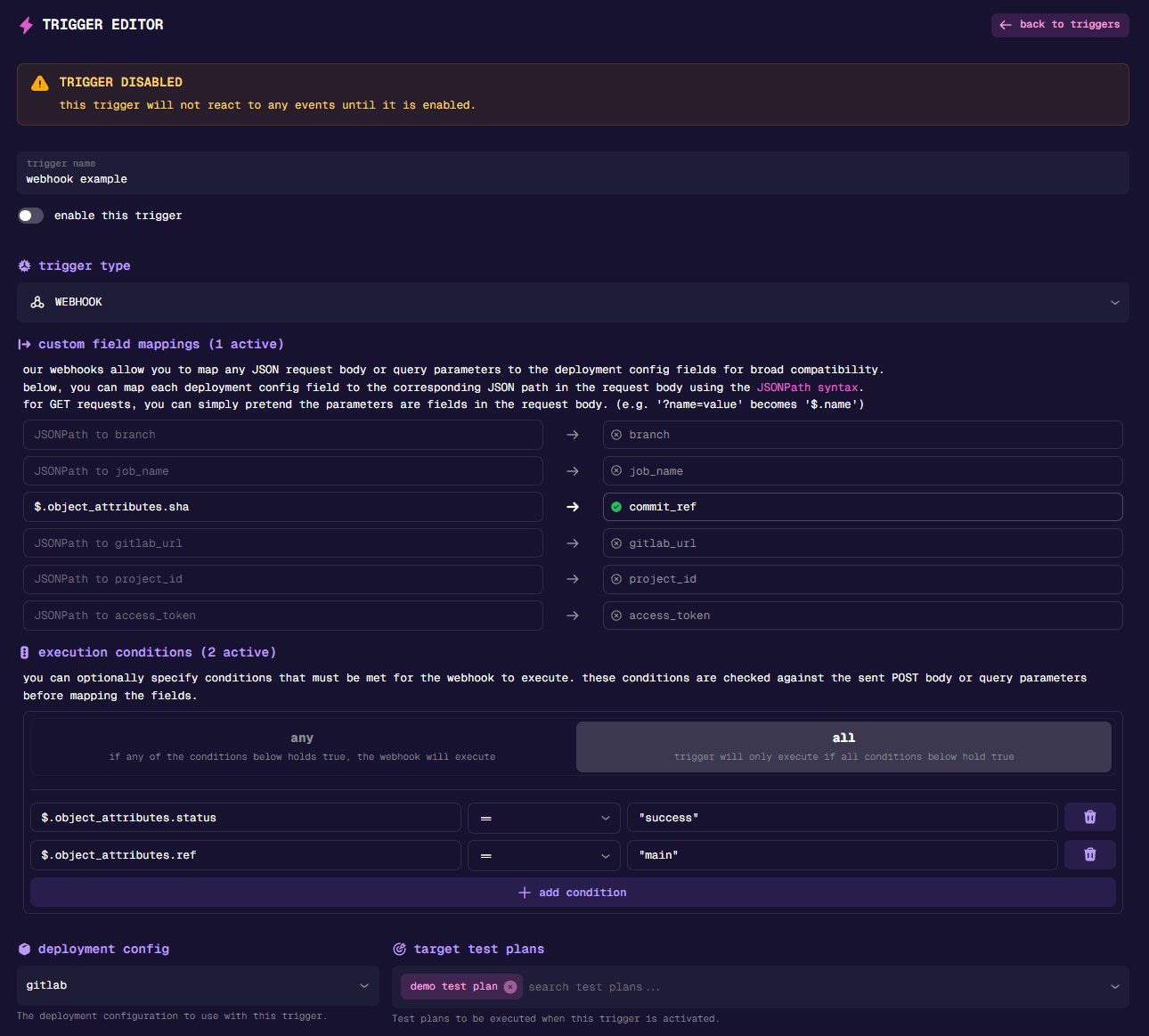
Field Mapping
When configuring a webhook trigger, you can map data from the incoming webhook payload to your test run configuration. This allows you to dynamically set parameters based on the webhook content.
- Custom Field Mapping: Define how fields from the webhook JSON payload should be mapped to deployment configuration fields.
- JSON Path: Use standard JSON path syntax to extract specific values from the webhook payload.
- Target Field: Select which deployment configuration field should receive the extracted value.
For example, you could map a build version from your CI/CD system to a version field in your deployment configuration, or extract a branch name to determine which test environment to use.
Execution Conditions
You can also set conditions that must be met for the webhook to execute. These conditions are evaluated against the webhook payload, allowing you to filter when tests should run based on specific criteria (like only running tests for certain branches or build types).
Cron Job (Fixed Interval)
Cron triggers allow you to schedule test runs to occur automatically at specified intervals. This is useful for regular regression testing, daily builds, or any scenario where you need tests to run on a consistent schedule.
For apps using Build Storage, choose a compatible build to pin it across scheduled runs or select deployment config selection to use its saved build settings, tags, and pin. Main and extra apps can be selected independently.
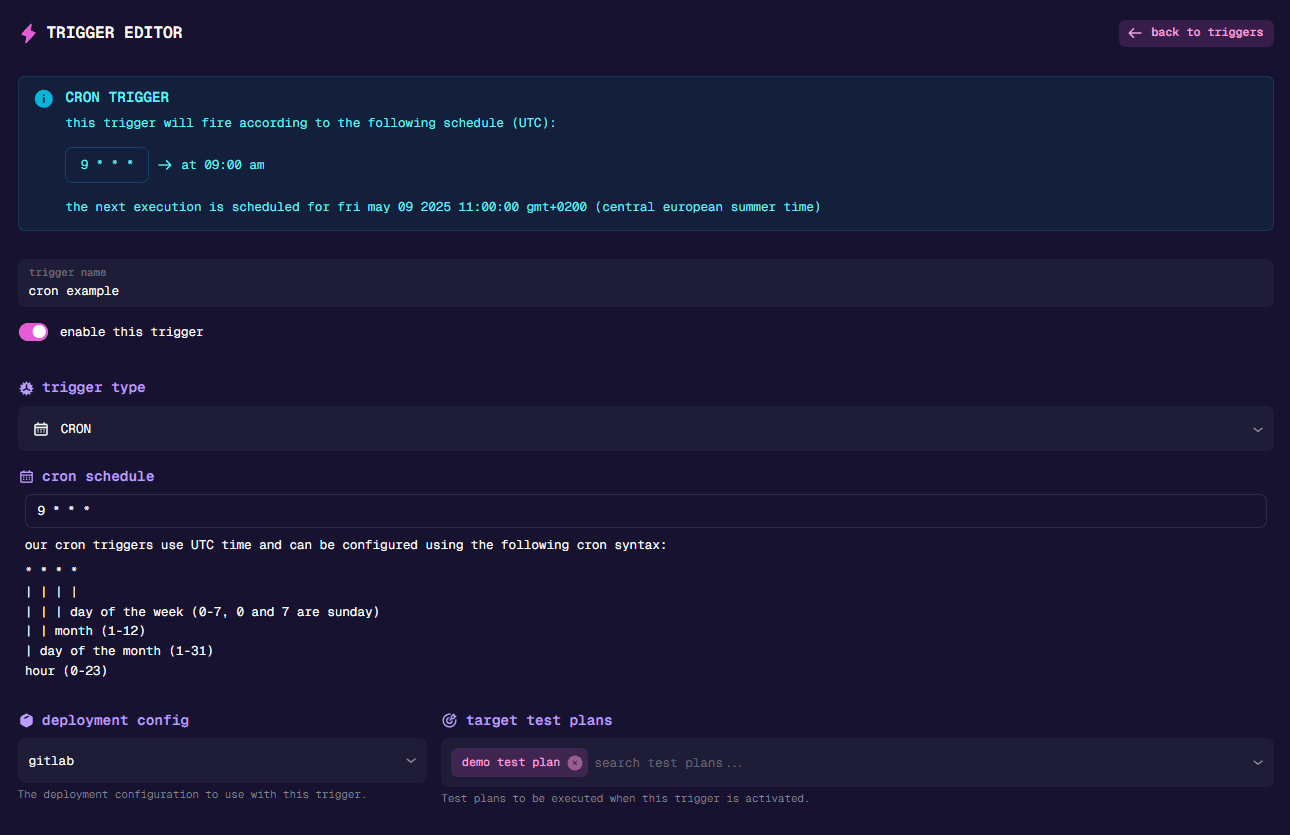
Cron Schedule
Cron triggers use standard cron syntax to define when tests should run. The format consists of five fields that specify the minute, hour, day of month, month, and day of week.
Here are some common cron schedule examples:
| Schedule | Description |
|---|---|
0 0 * * * | Run once a day at midnight |
0 */6 * * * | Run every 6 hours |
0 8-17 * * 1-5 | Run hourly from 8 AM to 5 PM on weekdays |
0 9 * * MON | Run every Monday at 9 AM |
0 0 1 * * | Run at midnight on the first day of each month |
*/15 * * * * | Run every 15 minutes |
All cron schedules are based on the UTC timezone. Make sure to adjust your schedule accordingly if you need tests to run at specific times in your local timezone.
Build Storage (Upload)
Build Storage triggers automatically initiate test runs when new builds are uploaded to Build Storage. If you’re already using the nunu-cli or API to upload builds from your CI/CD pipeline, this trigger provides a plug-and-play solution to automatically run tests without any additional integration work.
Build Storage vs Webhook
Both trigger types can achieve similar results, but serve different use cases:
| Build Storage Trigger | Webhook Trigger | |
|---|---|---|
| Setup | Zero additional setup if already using nunu-cli/API | Requires adding webhook call after upload |
| Flexibility | Works only with Build Storage uploads | Works with any external system |
| Control | Fires automatically on upload | You control exactly when it fires |
Use Build Storage triggers when you want the simplest setup and are already uploading builds via the CLI, GitHub Action, or API.
Use Webhook triggers when you need more control over timing, want to pass custom parameters, or are triggering from systems that don’t use Build Storage.
You can press the toggle button to enable or disable the trigger at any time. This is useful when you want to temporarily pause automated test runs without deleting the trigger configuration.
Upload Trigger Condition
You can configure which types of uploads should trigger the test run:
| Mode | Description |
|---|---|
| All Builds | Trigger on any build upload, regardless of upload method |
| Manual Uploads | Only trigger when builds are uploaded manually through the Nexus UI |
| API / CLI | Only trigger when builds are uploaded programmatically via the CLI or API |
Build Name Regex
Optionally filter which builds trigger the test run by specifying a regex pattern that matches against the build name. This allows you to target specific builds based on naming conventions.
Examples:
^release-.*- matches all builds starting with “release-”^.*debug$- matches all builds ending in “debug”^.*stage.*- matches all builds containing “stage”
Required Tags
You can specify a list of tags that must all be present on the uploaded build for the trigger to fire. This is useful for creating conditional triggers based on build metadata.
For example, if you set required tags to ["production", "qa-ready"], only builds that have both the “production” and “qa-ready” tags will trigger the test run. You can add tags when uploading via the CLI using the --tags flag.
To get started uploading builds, see the CLI Quick Start or Build Storage documentation.