Platform Quotas
Managing project quotas needs the Organization Admin role in your organization.
Platform quotas control how many concurrent devices your organization and projects can use on each platform, and which platforms are available to each project.
How Quotas Work
Your organization has a tree of quotas that set concurrent device limits for individual platforms or groups of platforms. Groups can be nested—for example, an all devices group can cap total concurrency across your organization while containing sub-groups such as standard devices, minions, private phones, and external platform.
- Shared organization limits: organization limits apply across all projects in your organization.
- Project overrides: organization admins can set a lower limit for any project on any quota row, or set it to
0to turn that platform or group off for the project. Project overrides cannot exceed the organization limit. - Effective limits cascade down: a child row’s effective limit for a project is capped by every parent group above it. For example, setting
all devicesto10on a project capsstandard devicesandminionsat10as well, while a row with an organization limit of5stays at5. - Platform availability: a platform is enabled for a project when it is covered by active organization quotas (limit above
0) and not disabled by a project override.
Organization-level quota groups and limits are configured by the nunu team. To request additional capacity or access to another platform, contact us.
Managing Quotas Across Projects
Open org admin → settings in the sidebar and select the Quotas tab to view your organization’s quotas alongside all projects in one place.
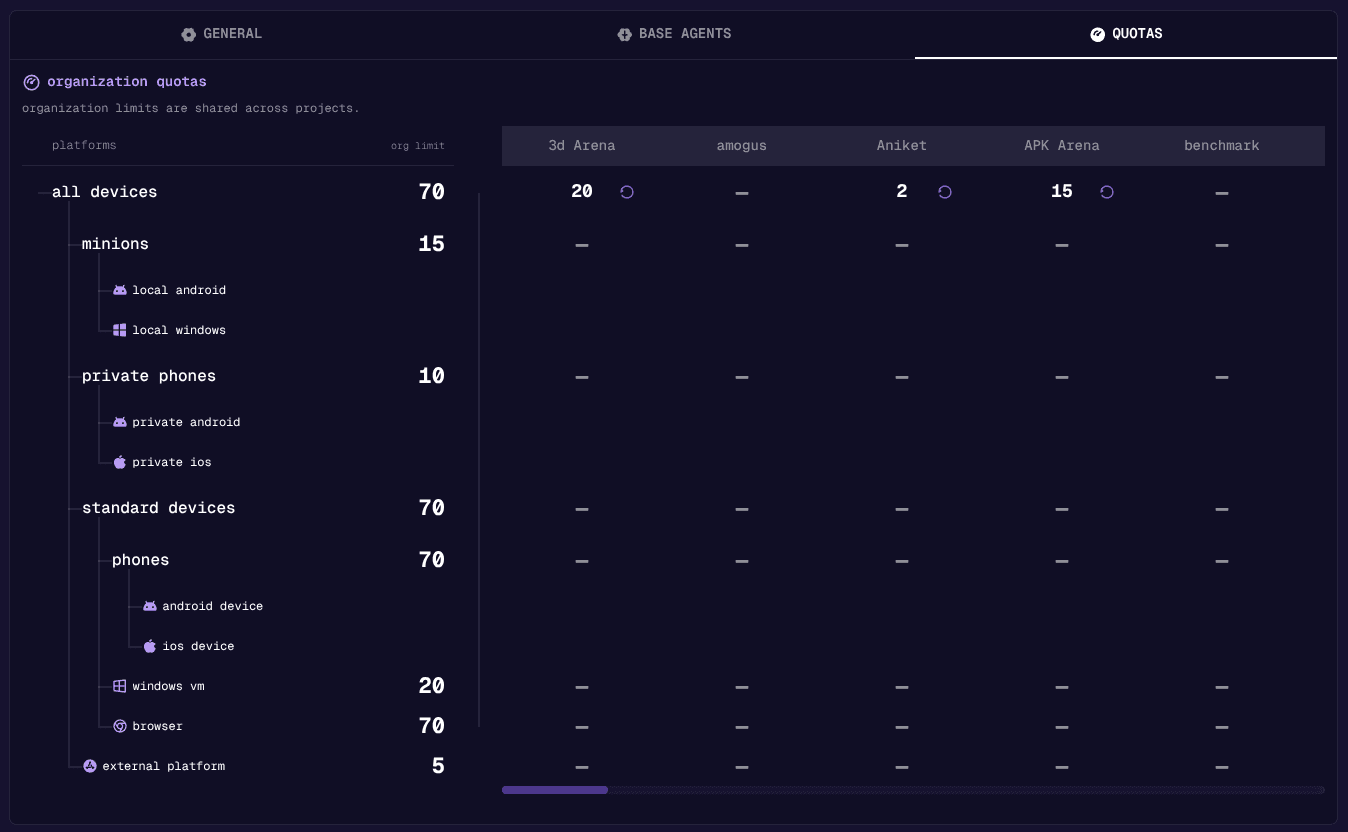
Each row shows the platform or group and its org limit, followed by a column for each project:
- A dash (
—) means the project inherits the organization limit. - Click any project cell to set a custom concurrent device limit for that project, or enter
0to disable that platform or group for the project. - Click the reset icon next to an override to remove it and return to the organization limit.
Managing Quotas for a Single Project
Open project admin → settings in a project and select the Quotas tab to manage limits for that project.
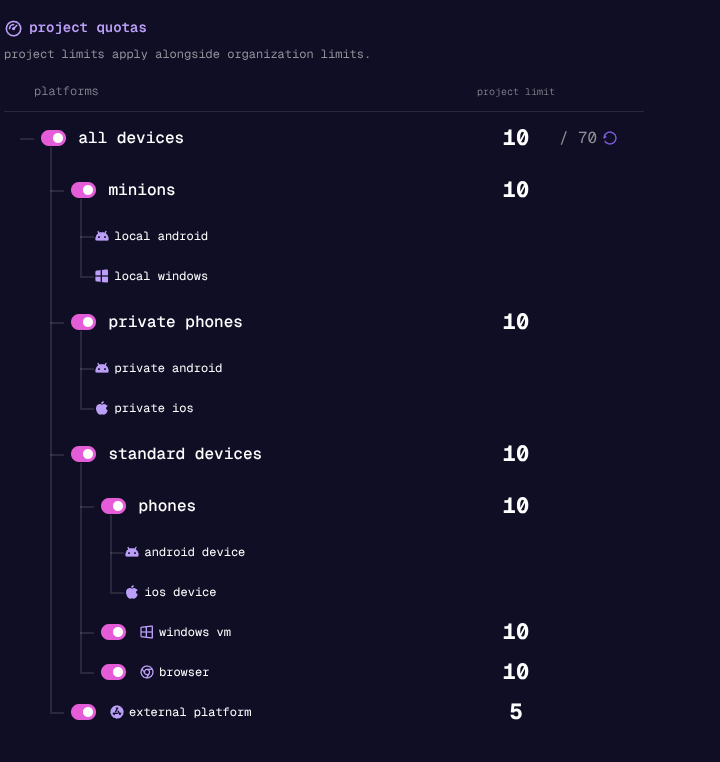
- Enable or disable platforms: toggle the switch on any platform or group to turn it on or off for the project. Turning a row off sets its project limit to
0. - Set a project limit: click the number in the project limit column to set a lower cap for the project.
- Reset an override: rows with a project override show the organization limit beside them (for example
10 / 70) along with a reset icon to restore the organization limit.
Monitoring Live Usage
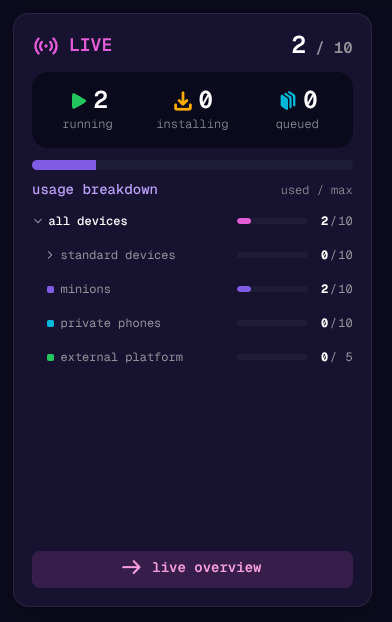
Project members see their project’s effective capacity and live breakdown on the Dashboard in the Live card. Nested groups can be expanded to see usage per sub-group.
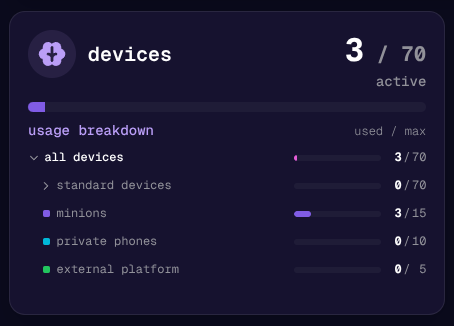
Organization admins can open org admin → org dashboard to see total active devices across all projects in the devices card, broken down by organization quota.
When a Quota Is Reached
- Queued runs: when all concurrent slots for a quota are occupied, additional runs wait in the queue until a device frees up. In Live View → Queued Runs, they show PROJECT QUOTA LIMIT or ORG QUOTA LIMIT; hover over the label to see which quota is full.
- Disabled platforms: platforms disabled for a project (
0slots) are hidden when creating new deployment configurations. Attempting to start a run on a disabled platform is rejected.