Runs
The Runs view provides a detailed overview of your finished test runs and their results. This page helps you track the execution and outcomes of individual test cases.
The Runs view lists completed runs only — those that have finished executing, whether they ended normally or were stopped, timed out, or errored. Runs that are still queued or in progress appear in the Live view, not here.
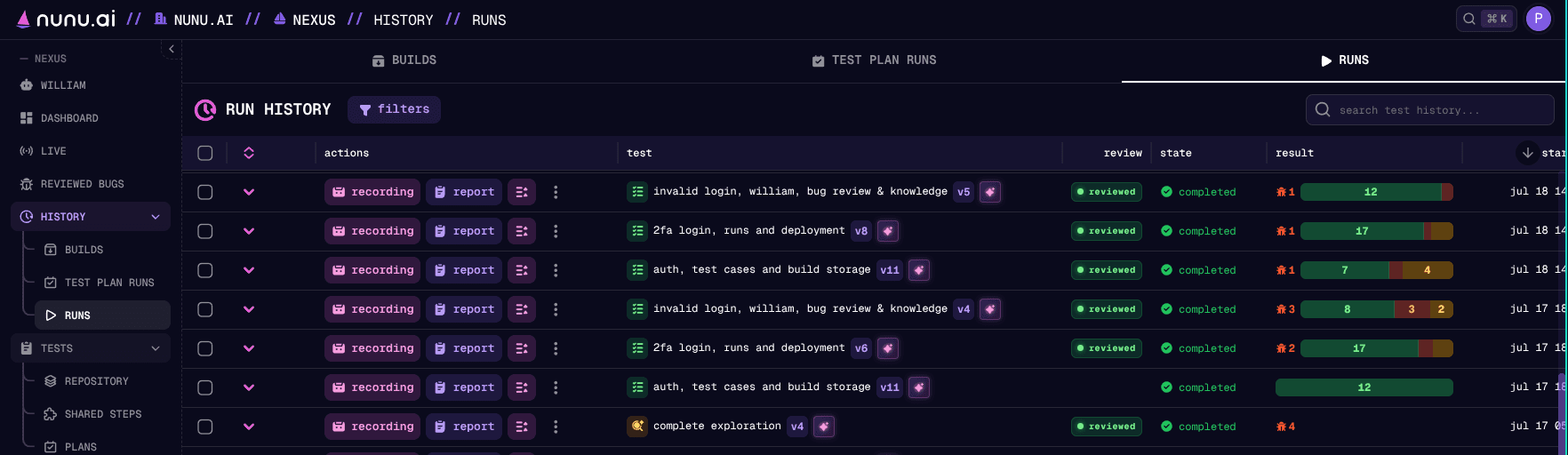
Column Descriptions
The Runs view displays several columns that provide important information about each test run. Some columns only appear in certain contexts (noted below):
- <>: Lets you expand/collapse a test run to see all the different steps of that test.
- actions: Click the recording icon to see an in-depth view of what happened in the run, the report icon for a brief text summary of the important events, or the details icon for additional high-level run information. A kebab (⋮) menu holds extra actions such as copying the run/job id, marking bugs reviewed, exporting to TestRail, and deleting the run.
- test: The test case that was executed, prefixed with its type icon (verification, task, or discovery) and version. A group icon marks multiplayer tests.
- review (bug-review projects only): How many of the run’s bugs have been reviewed, out of the total found.
- state: How the run’s execution ended —
completed,stopped,timeout,error, orincomplete. See State and Result below. - result: The run’s verdict, which depends on the test type (a per-check summary for verification,
success/no success— orblocked/skipped— for tasks, bug findings for discovery), together with its bug count. See State and Result below. - started: Time when the test execution began.
- env (build view): The environment (
windows,android,iOS,console) on which the test was executed. - build (build view): Hyperlink to the exact build this test run was run on.
- started by: Who initiated the test execution.
- duration: How long the test execution took to complete.
- tags: Labels assigned to the test for categorization and filtering.
- export (when enabled): Export the run’s data.
State and Result
The outcome of a run is split across two columns. state tells you how the execution ended; result tells you what the verdict was. They answer different questions — a run can end normally (completed) but still fail its checks, and a run that timed out has no verdict at all.
State — how the execution ended
The state column reflects how the run finished, independent of the verdict:
completed: The run executed to the end normally. Its verdict — passed, failed, and so on — is shown in the result column.stopped: The run was stopped by a user. Hover the info icon to see who stopped it and why.timeout: The run ran out of time or its step budget before finishing. Hover the info icon for the code and message.error: An error occurred, ranging from a game crash to our systems breaking. Hover the info icon for the code and message.incomplete: Legacy label for a run that exhausted its step budget; largely superseded bytimeoutand kept only for historical rows.
Result — the verdict
The result column only carries a verdict for completed runs — a run that was stopped, timed out, or errored never reached one, so its result shows only its bug count. What a completed run shows depends on the test type:
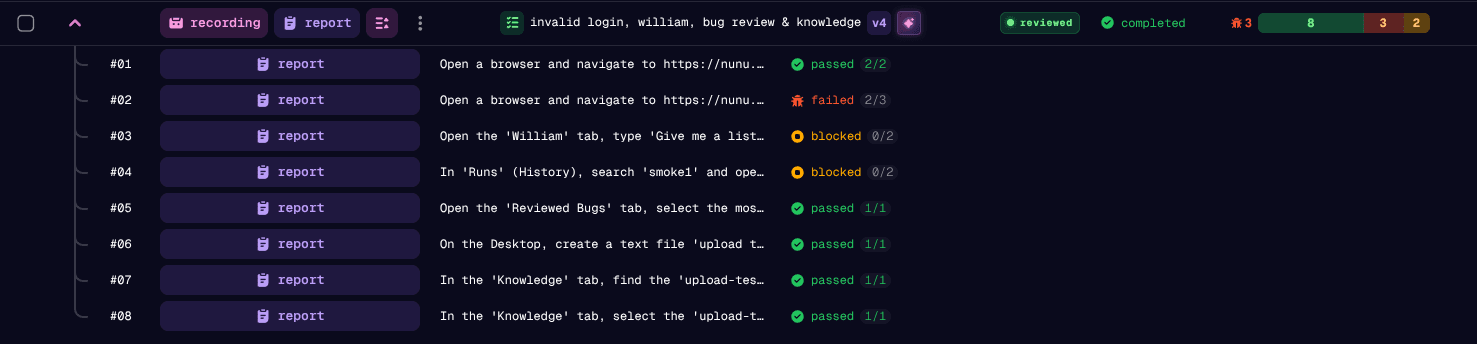
- Verification tests show a check summary bar: a compact breakdown of how the individual checks resolved (passed / failed / blocked / skipped, plus any checks that were never reached). This keeps per-check detail visible instead of flattening a whole run to one word. Expand the run with the <> toggle to see each step and check. See Verification verdicts below for what each outcome means.
- Task tests show whether the goal was accomplished:
successwhen it was,no successwhen it was not. A task can also readblocked(progress was prevented by a prerequisite) orskipped(the work was intentionally not done). - Discovery tests show their bug findings — the bug badge, or
no bugswhen a completed sweep found none. Discovery cannot “fail”; its result is what it found.
Verification verdicts
A verification test is a set of checks (expected results) grouped into steps. Each check that was reached resolves to one of these outcomes, and the same outcomes roll up to describe a step and the run as a whole:
- passed: The check was evaluated and its expected result held. A step or run is
passedwhen everything that ran passed and nothing failed or was blocked. - failed: The check was evaluated and its expected result did not hold — the app did not do what the test expected. This is the only negative verdict, and it always wins the roll-up.
- blocked: The check could not be evaluated because a prerequisite or environmental condition got in the way (for example a step earlier in the flow never reached the screen this check lives on). Blocked is not a pass or a fail — the outcome is simply unknown.
- skipped: The check was intentionally not executed. Skipping never counts against a test.
A run that was cut short may also leave checks that were never reached — execution ended before it got to them. The summary bar shows these distinctly so you can see what went unverified. For the verdict they behave like skipped: they sit at the bottom of the severity order and never cause a fail or a block.
How the run verdict is reached
The verdict shown for a step, and for the whole run, is a roll-up of the checks by severity — the most severe outcome present wins, in this order:
failed > blocked > passed > skipped
- A step’s verdict is the most severe of its own status and all of its checks.
- The run’s verdict is the most severe of all its steps.
In practice that means: one failed check fails the whole run; if nothing failed but something was blocked, the run is blocked; if at least one thing passed and nothing failed or blocked, the run is passed; and only when every step was skipped does the run read skipped. A test that skips a few steps but passes the rest still passes — skipping never drags a passing test down.
A step doesn’t need checks to carry a verdict: each step has its own outcome (passed / failed / blocked / skipped) that participates in the roll-up alongside any checks it contains. So a checkless step can still fail or block the run — its own status decides. Only a verification test with no steps at all has nothing to evaluate and defaults to passed.
The AI Agent assigns each step and check outcome as it walks the test, and you can steer that with the test instructions. A step’s goal, finish condition, or hints can tell the agent to reach a specific verdict under a given condition — for example “if the store fails to load, mark this step blocked” or “fail this step if the tutorial can be skipped”. This lets you encode pass/fail rules that don’t map cleanly to a single expected result.
Bugs
Alongside the verdict, the result column shows the run’s bug count — a bug icon () with the number of bugs found (e.g. 3), with a per-step breakdown on hover. A run with no bugs shows nothing here (except discovery runs, which show no bugs to confirm the sweep completed clean).
Bugs are orthogonal to the verdict — a passed run can still carry bugs, and a failed one may have none.
Older runs recorded before per-bug counting show a coarser assessment label instead of a count, and only when the AI Agent judged a bug likely — likely_bug or def_bug. These appear on legacy rows only; new runs always use the bug count.
Recording
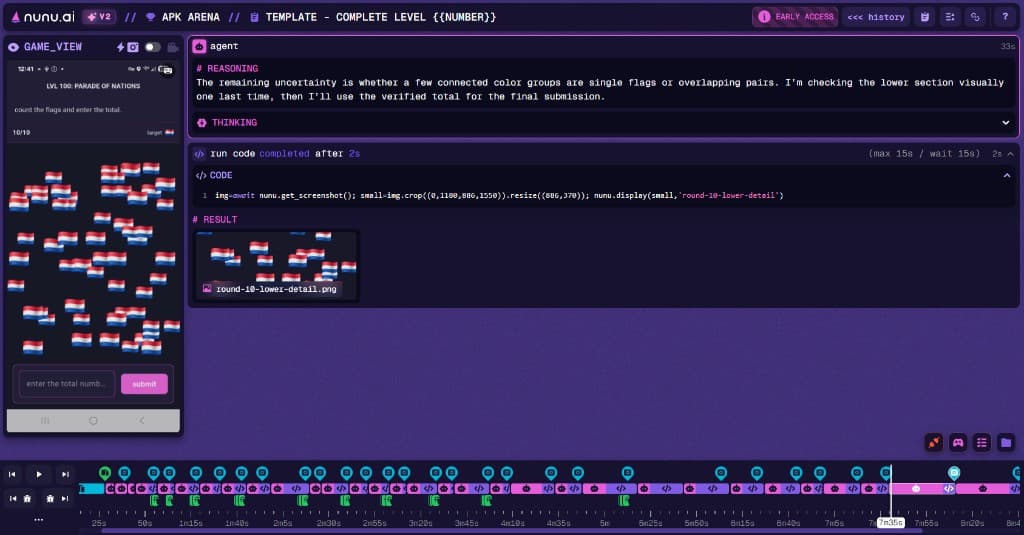
You can check exactly what happened in a run by clicking on the [ recording ] button. The recording view provides a comprehensive playback of the test execution, allowing you to analyze every action, decision, and outcome in detail.
Timeline
At the bottom of the recording view, you’ll find a detailed timeline of the run. Use the left and right arrow keys to navigate between different AI Agents. The floating action items in the bottom-right corner provide access to additional run information.
Timeline events
Timeline markers identify the type of event at a glance:
 Device connected: The test device connected to the run.
 Agent code: The AI Agent ran code.
 End run: The run ended.
 Chat: A chat message was sent.
 Interact: The agent interacted with the device.
 Screenshot: The agent captured a screenshot.
Floating action items
 Task: Shows the current test, using a different symbol for verification and discovery tests.
 To-do list: Shows the AI Agent’s current to-do list.
 File system: Shows every file the AI Agent can access, including knowledge-base and memory files, the test case, files it creates, and device logs.
 SDK: Shows the available functions and whether the SDK is connected to the game.
Pro Tip: Hold Ctrl and use the arrow keys to skip entire turns.
The recording view is essential for understanding what happened during a test run and analyzing why the AI agent made specific choices. It provides a complete visual timeline of the agent’s actions, decisions, and interactions with your game, making it invaluable for debugging test failures, optimizing test cases, and improving AI agent performance.